Tuesday, November 14, 2006

Security: Microsoft Patch Tuesday (November)

It's the second Tuesday of the month, which means that Microsoft just published another round of security fixes for Windows and it's applications. This date is meant to be a predictable date so that companies only have to patch their computers and servers once a month.

Microsoft generally rates the severity (such as: critical, important, etc.) of each of the patches. This month there are five patches that are marked critical, and one patch that is marked important.

For the average user, if you have Automatic Updates enabled your computer will download these updates for you in the background. Then when you shutdown these patches will be installed, or if you leave your computer on overnight they will automatically be installed and your system rebooted.

Warning: Any unsaved work will be lost if your system is rebooted...

To keep your computer updated, if you don't have 'Automatic Updates' turned on I would recommend that you enable it as soon as possible. Also if you have enabled this feature, and you leave your computer on overnight I would save all your work before you leave for the day.
To enable Automatic Updates:
  • From the Start menu, select the Control Panel folder.
  • Double-click the System applet in the control panel folder.
  • Click the 'Automatic Updates' tab.
  • Check the 'Automatic (recommended)' option. (optional: if you don't like this feature, you can set it to: 'download but not install the update', 'just notify you', or 'disable this feature altogether' [not recommended])
  • Press the OK button when done.
If you don't want to enable Automatic Updates, you can always update your computer by visiting the Windows Update site and downloading and installing the patches manually.

Note: For the latest Microsoft Security Bulletins, check out this site.

Monday, November 13, 2006

Article: Alarm Raised for Critical Broadcom Wi-Fi Driver Flaw

eWeek reports: "Computer security analysts are raising the alarm for a critical vulnerability in the Broadcom wireless driver embedded in PCs from HP, Dell, Gateway and eMachines."

This seemed like the hot topic of the day. Basically there's a stack-based buffer overflow exploit in the Broadcom BCMWL5.SYS wireless device driver. Basically if you use your Wi-Fi card to hookup to the Internet in a public place, you could theoretically have your computer taken over by this exploit.

Broadcom has released a fixed driver to its partners, but the availability of fixes appears to be limited. Check with your Wi-Fi card manufacture to find out if you're affected.

Friday, November 10, 2006

Article: Microsoft: Vista RTM a 'Significant Milestone'

eWeek reports: "The code for Windows Vista has finally been released to manufacturing, Jim Allchin, co-president of Microsoft's platforms and services division, announced in a media teleconference on Nov. 8."

Windows Vista and Office 2007 will be coming soon to a store near you. Windows Vista is the most significant upgrade to this OS since Windows 95. The desktop, and Windows Explorer have several new features that may take some time to get use to.

Overall, I really like Vista it has been a very stable OS. When it first ships the greatest problem I would expect that most people will have is driver availability for certain devices.

There is a lot of driver support build into Vista already. Although, for some devices you might have to wait for manufacture to release updated drivers.

Thursday, November 09, 2006

Windows XP: Turning off the 'New Programs Installed' Notice

Whenever a new program is install in Windows XP, the Windows Explorer highlights the new program shortcuts in the Start menu under the 'All Programs' sub-menu. Some people may find this feature useful, while others will find it really annoying.

To disable this feature, follow these instructions:
  • Right-click the Start button, and select Properties.
  • On the Start Menu tab, press the Customize button.
  • Click the Advanced tab.
  • Under 'Start Menu Settings,' uncheck the 'Highlight newly installed programs' checkbox.
  • Press the OK button.
Note: To re-enable this feature, just follow the instructions but check the 'Highlight newly installed programs' checkbox.

Wednesday, November 08, 2006

Internet: Live Search 3D Maps

Microsoft recently added 3D maps of some popular cities in the US to their Live Search site. I am and have been a big fan of Google Earth for a long time, but I have to say that the quality of Microsoft's 3D maps are better then those available from Google.

3D views are available for the following cities:
  • Atlanta
  • Baltimore
  • Boston
  • Dallas
  • Denver
  • Detroit
  • Fort Worth
  • Houston
  • Las Vegas
  • Los Angeles
  • Philadelphia
  • Phoenix
  • San Francisco
  • San Jose
  • Seattle
To use this new service and see the new maps you need to install the Virtual Earth 3D plug-in for Internet Explorer 6 and higher.

Tuesday, November 07, 2006

Software: Firefox 1.5.0.8 is Now Available

If you have not upgraded to Firefox v2.0 just yet for one reason or another and you're still running v1.5.0.7 (or older) of the browser, you will soon be getting a notice that you need to upgrade v1.5.0.8. This new version of the Firefox browser contains security and stability updates, below is a brief list of the fixes:
  • Running Script can be recompiled
  • RSA signature forgery (variant)
  • Crashes with evidence of memory corruption
If you're curious how long Mozilla.com will support v1.5.x version of their Firefox browser, here is a quote from their web site, "Firefox 1.5.0.x will be maintained with security and stability updates until April 24, 2007. All users are strongly encouraged to upgrade to Firefox 2."

Monday, November 06, 2006

Security: ShieldsUp and LeakTest

Did you know that the Windows Firewall that comes with Windows XP is only a one-way firewall? Which means that it can prevent threats from the Internet from harming your computer. Although, if your computer is infected by some type of malware (i.e.: virus, worms, etc.)., then you won't know about them.

Most commercial firewalls that you can buy today are two-way firewalls which means that they block threats from the Internet, but they also alert you to programs that is trying to communicate with the Internet. Most of the time you're only going to see legitimate requests from applications (such as your browser, IM client, etc.) requesting access to the Internet.

Although there are times that you might find that there is a rouge application that is installed on your computer making a request. This is when you should suspect if your computer is infected by some type of malware.

Gibson Research offers to great utilities that can help you evaluate how well your computer's defenses are protecting you. The first utility is called ShieldsUp which checks your firewall for open, closed and stealth ports.
Quick lesson about TCP/IP: When communicating with the TCP/IP protocol (everything on the Internet uses this protocol to talk to each other) with another device there are two things that you have to know. The remote device's IP address and the TCP port that you want to communicate with. A TCP port is like a port hole on the side a ship, when its open it can allow something in (i.e.: air, water, birds, etc.), when its closed then nothing can get in.
Ideally you want all the ports on your computer to be stealth which means when hackers and malware are scanning for vulnerable computers they won't be able to find you. While closed ports are not as good as stealth ports because they tell the hacker or malware that there is a computer at a specific IP address. Although, since the port is closed, there is nothing that they can do with it.

The second utility is called LeakTest, which is a very simple program that makes a request to the GRC's web server. If your firewall let's the program make the request without alerting you then your firewall doesn't block unknown outbound connections. These connections can be used by malware to 'leak' data about you out of your computer without you knowing about it.

Friday, November 03, 2006

Software: EverNote (Note Organizer)

Do you take a lot of notes and keep them in various places? If you're like me I like to track lots of data on several different subjects so its important to me to be able to keep all my notes in one place and make them searchable.

There are several different programs available on the market to do this, but there are two I would suggest that you check out. The first one is called OneNote from Microsoft, its part of their Office suite. The second program is called EverNote. Both of these programs can capture, search, and allow you to organize several different types of data (i.e.: text, web pages, e-mail, images, video, and more.)

EverNote comes in two versions, free and paid. Both versions are featured pack, but he paid version has three main features that the free version doesn't:
  • Synchronizing your notes with a USB flash drives or other types of removable media.
  • Handwriting, and shape recognition.
  • The ability to search in handwritten notes.

Thursday, November 02, 2006

Video: First look at Microsoft Office Live

CNET News.com reports: "CNET's Elsa Wenzel shows off Microsoft's new Office Live service. In addition to giving you a free Web site, Microsoft Office Live will soon enable online keyword marketing campaigns for your company while integrating its various Web-based tools with the desktop Office Accounting and, of course, the impending Microsoft Office suite."

The video production quality is sub-par, but it gives you a quick introduction to the Microsoft Office Live service.

Wednesday, November 01, 2006

Software: Microsoft is Giving Away a Free Accounting Application

According to Microsoft's IdeaWins.com web site, they're giving away Office Accounting Express 2007 software absolutely free, with no strings attached.

Some of the new functionality includes: creating invoices, quotes, receipts, and expense tracking. Some of the other features of the program include:
  • Enter data once and share it seamlessly with other Microsoft Office system programs
  • Manage payroll and taxes with ADP's integrated payroll service
  • Store and organize all your customer, vendor, employee, and financial information in one place
  • Get business insights with over 20 customizable reports
  • List items on eBay, track sales activity, and download and process orders
  • Monitor your customers' business credit in real-time through Equifax
  • And more.
Office Accounting Express 2007 also includes links to third parties that offer additional fee-based services, including ADP for payroll, eBay for online sales, Equifax for credit checks and PayPal for online payments.

Tuesday, October 31, 2006

Windows Media Player 11 Hits the Street

Microsoft Watch reports: "Microsoft has released the final version of Windows Media Player 11 for Windows XP, which brings a new user interface, greater online store integration, and improved navigation for larger music libraries."

Windows Media Player 11 is finally here. It has a slick new interface and lots of new features. Read the article to get a quick run down of some of the new functionality.

The player is available for download here.

Monday, October 30, 2006

Free and Low Cost Office Suites (and other stuff)

In a previous article, I talked about how to create a low cost virtual office. Now I am going to show you where you can find free or low cost office suites for personal or business use.

There are several options available to you. Some of these suites require that they be install on your local computer, and others can be run from within your browser.

Personally I am a big fan of Microsoft Office, and I have a hard time using anything less. The one problem with Office is that its not free or low cost.

If you just have basic word processing needs, such as writing letters to your friends and family, or creating simple spreadsheets or presentations. Then Microsoft Office might be over kill for you, there several other choices available that might be a better fit for your needs.

Out of all the free, low cost, or online office suites available, OpenOffice.org is the best IMHO. Then after that I would start to look at everything else and see what fits your needs. Whatever you look at, make sure its has the features that you're going to use.

All these tools are pretty good for doing basic things like creating a document, managing numbers, etc. Although, for tasks that are more complicated, you're going to need a real office suite like OpenOffice.org or Microsoft Office.

Office Suites

Browser Based:
  • ThinkFree: A Java-based browser office suite. Includes word processor, presentation and spreadsheet application.
  • Google Docs & Spreadsheets: An AJAX-based browser office suite. Includes a word processor and spreadsheet application.
  • ZOHO: An AJAX-based browser office suite. Includes a word processor, presentation spreadsheet application, and more.
Software Based:
  • OpenOffice.org: One of the best office suites available. Includes a word processor, presentation and spreadsheet application.
  • AbiWord: A free word processor application.
Drawing and Page Layout:
  • Dia: An open source vector graphic program.
  • GIMP: An open source bit-map drawing program.
  • Scribus: An open source page layout program.
Instant Messaging Client
  • Meebo: A browser based universal instant messaging client. Supports: AIM, ICQ, MSN Messenger, Yahoo Messenger, Jabber and GTalk.
  • Trillian: If you have multiple accounts across several IM services this is a great IM client. Supports: AIM, ICQ, MSN Messenger, Yahoo Messenger, and IRC.
Email/Calendar/Contact Manager

Browser Based:Software Based:
  • Thunderbird: An e-mail client, with spam filtering.
  • Sunbird: Calendaring with a task manager.
Other Useful Stuff...
Below are some extra resources that you may need in your day-to-day activities.

Software:
  • GnuCash: Personal and small-business financial-accounting software.
  • Free Templates: Free label templates for: Avery, CDs, address, mailing, shipping, etc.
  • 1001 Free Fonts: Thousands of free fonts are available for download.
Reference:
  • Answer.com: Need information about a word or subject, this site includes dictionary, thesaurus, encyclopedia (uses Wikipedia), and more.
  • Currency Converter: Lookup current exchange rates for just about any currency.
  • Martindale's Reference Desk: A great collection of links to different types of references available on the web.
  • Martindale's On-Line Calculators: A great collection of links to different types of calculators available on the web.
  • RefDesk: A great collection of reference resources that are available on the Web.
  • Unit Converter: Convert just about any numerical data from one unit type to another.
  • World Clock: A web-based world time clock.
  • Yearly Calendar: A web-based yearly calendar.

Saturday, October 28, 2006

Network: Error Message - "Network Cable Unplugged"

Home networks have become very important these days. Most people who use a computer might know how to hook an Ethernet cable from their computer to their switch or broadband router but that's generally all they understand about networking or even care to know about it.

Until the day they get a message that says 'Network Cable Unplugged.' It sounds simple and could be but this same message could also mean something more then the cable is unplugged. This same message could mean that you have a short in your cable, your network card has stopped functioning, etc.

Follow the steps below to help diagnose this problem:
  • Verify the cable is plugged in at both ends, press it in see if you hear a click. Check your computer and see if the message goes away. If it doesn't unplug the cable at both ends, then plug it back in.
    • If this is a new cable, make sure that its not a crossover cable (check the bag that it came in) you need a straight through network cable. Also some network switches have an uplink port or a button to make a port an uplink port. If the uplink button is enabled disable it, this is only needed if you're hooking two switches together without a crossover cable.
  • When the cable is plugged in you should see a green light (or even a flashing green or amber light) on the switch and on your computer. If you're not getting these lights after you check the cable in the previous step, try changing out the cable.
    • If you're not getting any lights on your network switch, make sure its plugged in and getting power. Most switches have some type of diagnostic lights, if you don't see them the wall plug, power transformer, or network switch could be bad.
  • If you know your switch is working, try plugging the cable into a different port on it. Its not to uncommon for a port to go bad on the network switch or an Ethernet card. If you have another computer that you can plug the cable into try that. If you know the port is working on the network switch, try using a different Ethernet card in your computer.
    • Before you switch out the Ethernet card in your computer, check to see if you can find it in your Windows Device Manager. If you do see it you can try to uninstall and reinstall it again (this will require that you already have the driver for this device on your computer). If you don't see your network card in the Device Manager try downloading the driver from the manufacture's web site.

Wednesday, October 25, 2006

Software: Microsoft Windows Defender Released

Microsoft's free real-time anti-spyware scanner Windows Defender has officially been released from beta today. Personally I like this scanner, it has a very clean interface and its easy to use.

So far, I have not been infected by any virus or spyware, but I can't give all the credit to the scanner. I avoid downloading stuff from the Web that I shouldn't, that is the best way to prevent getting any type of malware.

Below is a list of some of the new features of the scanner:
  • Enhanced performance in the new scanning engine.
  • A simplified user interface and alerts.
  • Globalization and localization features, with multiple language support.
  • Support for Microsoft Windows XP Professional x64 Edition.
  • Automatic cleaning according to your settings during regularly scheduled scans.
Plus as an added bonus Microsoft is giving away two free support incidents for Windows XP and Windows Server 2003.

Tuesday, October 24, 2006

Article: Firefox 2.0 Scheduled For Release on Tuesday

PC Magazine reports: "The Mozilla Foundation will release the Firefox 2.0 browser on Tuesday, Mozilla Foundation officials confirmed Monday. ... The new release promises several new features, as well as a solution to a annoying memory leak that has troubled earlier versions, according to Mozilla."

I have been playing with the release candidate of this browser for a few weeks now. It has some nice new features, but their not revolutionary.

I have one major complaint about this version of Firefox, several of my favorite extensions stopped working. So be prepared to be disappointed here.

Personally, I believe that the ideas for most of the new features in the browser were borrowed from the more popular extensions. Below is a list of some of the new features:
  • Phishing filter warns you when you're visiting a fake web site.
  • A new search feature that displays suggestions as you type your search request.
  • A session manager that restores the windows and tabs you had opened before a crash.
  • A spelling checker that spell checks your input into web forms.
  • Better RSS support.
To download the new Firefox 2.0 browser go here.

Monday, October 23, 2006

Wireless: Optimizing and Troubleshooting a Wireless Network Connection

Whenever you use your notebook computer to connect to a public or private wireless network,
it adds an entry for that network in to the 'Preferred Network' list. This list is meant to remember your network settings when you move from wireless network to network. The problem is that if you move between a lot of different wireless networks this list can get really filled up with a lot of junk that can slowdown your network connection time.

Another problem that happens often is that you can find yourself constantly being connected to a wireless network that you don't want to be connected to. This problem is caused by the fact that the entry for the wireless network that you don't want to be connected has a higher order of preference then your preferred network.

To fix both of these problems:
  • From the Control Panel folder, open the Network Connection folder.
  • Right click on the Wireless Network Connection icon, and select Properties
  • Click the Wireless Networks tab.
  • In the 'Preferred Networks' list, highlight and delete any wireless networks that you don't use. If there is a network that you use more often then others. Highlight the network and press the 'Move Up' button to move it to the top of the list.
  • Press the OK button when don't

Thursday, October 19, 2006

Windows XP: Internet Explorer 7 is now available...

Microsoft just made Internet Explorer 7 available for download. This is the latest version of the IE browser, and its only for Windows XP SP2 . If you're running an earlier version of the Windows OS, you're out of luck.

Some of the new improvements in the browser include: security protection, a redesigned user interface, and a development platform. Below is a high level list of the major new features:
  • Phishing Filter (reports if a web site is not who it really is)
  • RSS Reader (allows you to read RSS feeds in the browser)
  • Tabbed browsing (open multiple web pages in a single window)
  • Toolbar search box (quickly search from the toolbar)
  • Advanced printing (optimized web page printing)
  • Security Status Bar (displays different colors in the status bar to notify you how safe the web site might be)
  • Privacy Cleaner (quickly deletes your browser cache, cookies, and other data that might contain personal information)
  • And more...

Wednesday, October 18, 2006

Security: Rootkits Tools

There are several types of malware (viruses, Trojan horses, rootkits, etc.) that are in the wild on the Internet. Some types of malware will find and infect you if you're not running a firewall, others will disguise themselves in the form of an attachment. You can even get infected by visiting the wrong web site if your browser is vulnerable.


Rootkits are the type of malware that doesn't take no for an answer, they will try to exploit every trick they can to get administrator access to your computer. Then once they become an administrator they will deploy their payload.


Most anti-virus and anti-spyware scanners don't properly find rootkits, because they're generally very difficult to detect. Below are some anti-rootkit tools (some free, and others are fee based) that you can run to see if your system is infected by this type of malware.

  • Sysinternals: RootkitRevealer (free) - I have talked about this scanner before in a previous article. Although its still a good tool for detecting this type of malware, but it can't remove it.
  • F-Secure: BlackLight (free trial until 1/2007) - This application seeks out and tries to remove any rootkits it finds installed on your computer.
  • Sophos: Anti-Rootkit (free) - I have talked about this scanner before in a previous article. This application seeks out and tries to remove any rootkits it finds installed on your computer.

Windows XP: Automate the Disk Cleanup Tool

In a previous article I talked about the Disk Cleanup tool, which is designed to remove unnecessary temporary files from your computer. These files are created by applications to temporarily store data, but sometimes they don't get cleaned up correctly.

Now, I am going to show you how to automate this process. Its relatively easy to do, all you have to do is follow the instructions below:

Configuring the Disk Cleanup tool:
  • From the Run... command, type "cleanmgr /sageset:1" and press the OK button.
    • You can have up to 0 - 65535 profiles, all you have to do is change the number after '/sageset'. Make sure you remember the number you selected for the profile you will need it for the next section.
  • When the Disk Cleanup dialog displays, select or unselect the type of files that you want to remove when the tool is run.
  • Press the OK button.
Running the Disk Cleanup tool:
  • From the Run... command, type "cleanmgr /sagerun:1" and press the OK button.
    • Make sure to use the session number (i.e.: 1 in the example above) for the Disk Cleanup profile you created in the previous section.
The Disk Cleanup tool will now remove all the files as define by the profile you created.

The 'cleanmgr /sagerun:1' command can be run from the MS-DOS prompt, added to a script, or run from the 'Scheduled Tasks' feature on a regular basis.

Tuesday, October 17, 2006

Software: Changing the World with Your Screen Saver

Do you want to help cure cancer and other diseases? By installing special screen savers on your computer, you can donate your spare computing cycles to cure AIDS, cancer and solve other more complex problems.

The screen saver utilizes the unused processing power of your computer, as a part of a large distributed computing cluster. These clusters can be composed of thousands (or more) of computers working together for a common goal. The way these large clusters work is each computer downloads a small part of a larger problem, and computes the data and sends the results back to the master computer.

Below is a list of some of the projects that are available:
  • boinc.berkeley.edu: Stands for 'Berkeley Open Infrastructure for Network Computing', here is a brief list of some of the current projects: Climateprediction.net, Seasonal Attribution Project, BBC Climate Change Experiment.
  • folding.stanford.edu: Searches for treatments for Alzheimer's, Huntington's, and other related diseases.
  • grid.org: Searches for treatments for cancers, and other diseases.
  • SETI@home: Analyze radio telescope data in the search for extraterrestrial life.
  • www.worldcommunitygrid.org: Searches for treatments for cancers, and other diseases.
To donate your spare computing cycles. All you have to do is download the software, set how much of your systems resources that you want to donate, then leave your computer alone.

Thursday, October 12, 2006

Windows XP: Disabling Services and Devices Based on Hardware Profile

Did you know that services and devices can be enabled or disabled as part of a Hardware Profile? A hardware profile allows you to enable or disable certain features under certain conditions, such as when you dock or undock your notebook computer..

To disable services based on a hardware profiles:
  • From the 'Administrative Tools' folder, double-click on Services.
  • Double-click the service you want to modify
  • Click the Log On tab in the properties dialog
  • Click disable for the selected Hardware Profile.
To disable devices based on a hardware profile:
  • Open the 'Device Manager'
  • Double-click the device you want to modify.
  • In the General tab under the 'Device Usage' label select 'Do not use this device (disable)' option
  • Press the OK button.

Wednesday, October 11, 2006

Windows XP: Recovering from a Failed Driver Installation

Sometimes when you install a device driver the installation can fail, because of corrupt files, problems with the installer, resource conflicts, etc. To fix this issue, below is a list of some common solutions that might help you to recover from this problem:
  • Uninstall the device driver, restart the computer and try reinstalling it again.
  • Try using the Driver Roll Back feature.
  • Try using the System Restore feature.
    • From the Start menu > All Programs > Accessories > System Tools > System Restore. Follow the instructions in the wizard.
  • Reboot the computer, press F8 at startup, and select 'Last Known Good Configuration' and press the Enter key.
After following the advice above, if your system is still giving you some problems (such as displaying errors, rebooting, etc.) you can also try the following:
  • From the MS-DOS prompt, type "sfc.exe /scannow" (this runs the System File Checker). It verify the protected system files, and if problems are found it will revert them to a previous version.

Tuesday, October 10, 2006

Windows XP: Driver Signing

Microsoft's Windows Hardware Quality Labs (WHQL) digitally signs device drivers to certified that the driver was tested for compatibility with Windows and has not been altered since its testing. This program was implemented by the company to improve the quality of drivers that are available and increase the stability of the operating system.

Drivers can come from many different sources, like an installation CD, a web site, or other various sources. Some device drivers are not digitally signed by Microsoft, which could mean that they may not have been tested as thoroughly as they could have been. There's a greater chance that they could effect the stability of your system because of unknown compatibility issues.

To configure how these signed and unsigned drivers are handled by the OS, you need to open the 'Driver Signing Options' dialog:
  • Open the Control Panel folder.
  • Double click the System applet.
  • Click the Hardware tab.
  • Press the 'Driver Signing' button.
In the dialog, you have three options:
  • Ignore (Allows the installation of any files, signed or not.)
  • Warn (Displays a warning message that the driver being installed is not signed.) [Default]
  • Block (Prevents the installation of unsigned drivers).
Select the option you want, and press the OK button.

Monday, October 09, 2006

Windows XP: Ways to Install New Device Drivers

Anytime that you install a peripheral on your computer, the operating system (OS) will need a device driver to know how to use it. Windows has four different ways that it handles detecting and installing new device drivers into the OS:
  • Setup Program: This is software that comes with your new device. To install this software, generally requires putting a CD/DVD in your computer or downloading the setup application from the device manufacturer's web site.
    • Note: Some devices require that the installation software is installed first before you hook the hardware up to your computer. This is done to make sure the device is properly detected.
  • Booting Your Computer: Every time Windows starts it scans the system for new hardware that might have been added or removed since it was last on. After the system is fully booted, if new hardware is detected it will check if the system already has the appropriate driver for it. If not, it will request that you provide the location of the driver it needs.
  • New Hardware Scans: Sometimes after you boot Windows, you may not have the right drivers for new hardware that was added at that moment. After you get the right driver, you use the Add Hardware Wizard (select the Add Hardware icon in the control panel) to manually perform the hardware-detection and installation process to install the appropriate device driver.
  • Manual Installation: Sometimes device drivers don't come with an installation program, but instead they come with .INF files. You can right-click these files and choose Install to add these new drivers.

Friday, October 06, 2006

Security: Simplifying Web Site Logins

About a year ago, I wrote an article about how to create a strong password. In this article I discussed some of the techniques needed to create a password that someone can't easily guess or break. I also recommend that you don't use the same password for every web site that requires authentication.

I recently came across a very cool browser-based utility that simplifies using, creating and remembering strong passwords across any web site. All you have to do is create a master password that only you know, and give the site a URL (such as: http://www.google.com), it will then create a unique password for that web site. You can also create a bookmarklet (JavaScript embedded in to a bookmark) that you can store in your browser links bar, that can automatically generate a password for a site that your visiting based on your master password.

The way this utility works is by using JavaScript on a local web page loaded in your browser (no information is sent to the remote server). The script then uses MD5 to create a one-way hash based on your master password and the domain of the web site that you're going to use it for. Only the first eight (or more) characters of the hash are selected, so its impossible to break the hash because not all the information is used.

Thursday, October 05, 2006

Windows XP: Turning Off the Language Bar

Do you have the Language bar taking up real estate on your screen, or in your taskbar and you want to get rid of it? Follow the procedure below to turn off this feature.
  • Open the Control Panel folder.
  • Double-click 'Regional and Language Options' applet.
  • Click the Languages tab.
  • Under 'Text services and input languages', press the Details button.
  • Under Preferences, press the 'Language Bar' button.
  • Uncheck the 'Show the Language bar on the desktop' checkbox.
  • Press the OK button twice.
Note: By following this procedure you will be turning off handwriting recognition, speech recognition, and some other accessibility features.

Wednesday, October 04, 2006

Security: Internet Privacy is an Oxymoron

Sun Microsystems Inc. Chairman of the Board of Directors Scott McNealy once said, "You have no privacy, get over it." That statement is more true today, then when it was originally said. Everyday, we are losing more of our ability and rights to protect our privacy.

Did you know that there is no such thing as true anonymity or privacy on the Internet? All you can do is mask your identity, and make it difficult for someone to know who you are. Although, in most cases its still possible for someone to track and identify you with enough work.

There is a lot of information about you that is leaked by your own personal Internet activities (such as surfing a web site, posting on forums, etc.). Then your computer and its applications (such as your browser, IM client, etc.) are doing their own fair share to help leak more information.

Anything that contains your name, address, etc. Is known as 'personally-identifiable information' (PII), because it can personally identify you directly. This information is generally provided by you to some web site or service (such as Amazon, eBay, etc.) that you may use regularly.

Any of the information (PII or not) is used to profile how you surf the web, what you buy, and other types of demographic analysis. All most all of this tracking is perfectly legal, and you even grant companies permission to do this when you agree to use a web site through its 'terms of service' or 'privacy policy' that you don't read.

Information Leaked by your Applications
As I said earlier, when you visit a web site there is certain types of information about you that is revealed by your computers applications. A lot of this information (such as your browser cookies) are needed by web-based applications to be able to customize your experience.

Below is a brief list of some of the information a web site can know about you, just by visiting it with a regular browser and Internet connection:
  • The type of browser you're using, a long with information about its features. For example: what version of: Java, JavaScript, Flash and other applications you have installed (see: BroswerSpy).
    • This doesn't include the information in the HTTP header, which includes information about your browser and the web page you requested from a web site (see the following article for more information).
    • There is information in the HTTP header called the 'referer', that also gives the web site your visiting, the last URL of the web site you're coming from. Here is an example, of some of the information a site can see about you.
  • Browser cookies and web beacons (an invisible 1x1 graphic on a web page with a unique id embedded in to its name), which can be used identify your computer across different web sites. This technology is generally used by advertising and marketing companies to track and profile your browsing activity to better serve you ads.
    • As more web sites become interactive, browser cookies are used to track your web site session information. If you turn off the cookie feature, you can prevent certain web sites from working properly for you.
    • Web beacons have been used by spammers to track if you open up an email message, and to see if a email address is valid. Although, most modern email clients prevent images from being downloaded automatically which help prevent information about you from being leaked.
  • Your browser keeps local copies of all the web pages you visited in its cache, along with a history of all the URLs you visited. Some browser's like Firefox keep track of the files you downloaded, and the keywords you typed into the search toolbar. Then there is the saved forms information (known as AutoComplete in IE), and saved password feature. This information is used to improve the broswer's user experience, but also can become a privacy issue in some cases.
Then there is all your other Internet applications such as your e-mail client, instant message client, VoIP client, etc. Each of these programs have their own type of logging or privacy issues, that you might be or might not be aware of.

For example, your instant message client may keep logs of all your conversations. Your e-mail client, keeps all the messages that you received and sent. Your VoIP client keeps a log of all the calls that you make.

Even if you clean all this information off your local computer, your application's service provider has logs and/or copies of it in their servers and databases. Its not uncommon for them to use this information to profile usage habits of their users. All this information is also available to local and federal law enforcement generally with the use of a search warrant.

Generally, no matter what network enabled application your using, the following information is always going to be left about you on some server somewhere.
  • Once someone knows your computer's IP address, its possible to isolate the ISP, and therefore the city, state/province, and country your computer's from (see: IP Address Locator).
    • Local and federal law enforcement with the use of a search warrant can force the ISP to release your identity, based on your computer's IP address.
  • When you visit a web site, information is stored in the web server logs of the time you visited the site, your IP address, which pages you viewed, and sometimes what you searched for on that site (see: Omniture).
    • Think about this, all your favorite search engines keep all the information that you searched. If you have a personal account on a site like Google, Yahoo, etc., they can directly tie this information back to you.
    • For example: "On August 4, 2006, AOL released three months of search history for 650,000 users to the public. Although the searchers were only identified by a numeric ID, the New York Times discovered the identity of several searchers." (excerpt from the Wikipedia)
  • Anytime you visit a web site using it's domain name your computer needs to lookup the IP address of the remote server through some DNS server request. This information is then logged on that computer.
  • When you're at work, and you search the Internet your companies web proxies and firewall can track all types of Internet activity. Plus in the U.S.A. any information on your computer, or in your e-mail is property of the company.
Digital Forensics
With all the data stored on computers these days, a new area of computer criminal science has been created called 'digital forensics'. These are law enforcement personnel specially trained to find and retrieve specific information off a computer.

The tools that these people use are good at extracting the data they want. Generally the programs we use everyday are really good at leaving digital bread crumbs all over your computer's hard drive about everything that you do. These digital forensics tools are designed to leverage this information

On a side note, about digital forensics tools. Did you know that by using a pattern analysis program you can predict if something was written by a man or a women with almost 70% accuracy.

The way this technology works is by analyzing the words used in a message and assigns different values to them to determine if the text was written by a man or women. More information can also be determined by your writing style beside gender, such as your nationality based on the words that you use.

To see this tool in action, check out Gender Guesser or Gender Genie. With technology like this, it means that any of those anonymous posting or e-mail you might have created are becoming a lot less anonymous.
Note: This technology was created by Dr. Neal Krawetz of Hacker Factor Solutions.

Tuesday, October 03, 2006

Article: Firefox Zero-Day Code Execution Hoax?

eWeek reports: "A public claim by hackers that Mozilla's Firefox browser is vulnerable to multiple code execution vulnerabilities may be an overblown hoax."

Monday, October 02, 2006

Windows XP: Accessing the Windows Update Catalog

Do you need to download specific updates from Microsoft without using the Windows/Microsoft update site (i.e.: http://windowsupdate.microsoft.com/)?

There can be several reasons why you would want to do this, for example: you have a slow modem at home and you want to get your updates from a faster computer. Or, if you're a systems administrator at a company, and you need to update Windows clients or servers.

Whatever the reason, here is how you can do it.
  • Open Internet Explorer (this won't work from Firefox), and go to "http://v4.windowsupdate.microsoft.com/catalog"
  • Click the link "Find updates for Microsoft Windows operating systems" or "Find driver updates for hardware devices"
  • If you selected the find updates for operating system, you will need to select the OS which you're looking for the updates. Press the Search button to continue.
  • Select the category, and then select updates that you want to get.
  • Click the "Go to Download Basket" link.
  • Press the Browse... button to select the download location on your local computer.
  • Press the 'Download Now' button.
  • Choose if you want to accept the licensing agreement, then press the appropriate button.
After the files finish downloading, they will be available in the location that you selected.

Friday, September 29, 2006

Firefox: Open Multiple Home Pages

Just about anyone who uses a browser, generally has a favorite web page selected as their default home page when they open up this application. Firefox has a cool little trick that you might not know about. It can open multiple default home pages when the browser is first opened, all you have to do is separate each URL with a pipe ("|").

For example:
http://www.google.com | http://yahoo.com

To set the home page in Firefox (I am assuming you already have it open):
  • From the Tools menu, select Options...
  • In the Location(s) field, enter the URLs you want to use and separate them with a "|" (no quotes).
  • Press the OK button when done

Thursday, September 28, 2006

Security: Patch Your System Now

Microsoft recently released a new out-of-band patch (which means its out of their normal release cycle), that fixes a serious exploit in the Internet Explorer browser. This exploit allows a web site to execute code on your computer without your permission. This means if you visit the wrong web site you can have your computer infected with some type of malware.

If you have not patched your system, do it now at Microsoft Update. If you have the Windows Automatic Update feature enabled to download and install the patch, you should have it by now. If you don't have this Automatic Update feature enabled on your computer and want it, the instructions for setting it up are available in this article.

For more information on the patch see the following page.

Wednesday, September 27, 2006

Windows XP: Microsoft Guided Help

Microsoft has added a new feature to some of its Knowledge Base articles (MSKB), its called Guided Help. Basically its an application that you download and execute on your local computer that will walk you through the steps outlined in the instructions.
Note: Currently there only about 20+ MSKB articles that support this feature, although I hope more will be added soon. Look for the following icon: Guided Help in the search results to find articles that contain this feature.
If you're an advanced user, this feature will not be too helpful. These tutorials are targeted at the novice user who wants some one to show them what to do, and how to do it. Although if you know someone who can benefit from this feature, I would email them the link to the article.

When you find an MSKB article that contains the Guided Help feature. All you have to do is download the program from the article and then execute it. After accepting the licensing agreement, the program will give you screen clues on what to do and what to click.

For more information about Guided Help check out this MSKB page.

Tuesday, September 26, 2006

Software: Sophos Anti-Rootkit

Here is another tool in the ongoing battle to fight rootkits and other types of malware. If you don't know what a rootkit is, its a program that tries to hide its presence (i.e.: files, processes, registry keys, and network port) and tries to gain administrator access to your computer. Generally a rootkit will contain a malicious payload like some type of spyware that it will try to install in your system.

Sophos is offering a free Anti-Rootkit scanner, that will seek out and try to remove this software if its installed on your computer. The Sophos Anti-Rootkit scanner can be run from the GUI (Graphical User Interface), or the command line.

Monday, September 25, 2006

Reference: Types of Memory card

Are you confused by all the different types of media cards currently available for your camera, cell phone, PDA, etc? I wanted to provide a quick reference to all the media card form factors that are out there. Every card type has its advantages and disadvantages.

For example the SD form factor is the most popular, while the CF-II allows you to use Microdrives. Some media card types such as SmartMedia never took off.

Personally, one of my selection factors for buying new electronics is that the device needs to support SD cards. I hate having devices that can't support the same type of removable media. This is handy when you need to be able to off load the media to another device quickly.

Below is an excerpt from an Wikipedia article on the different type of media cards available. You might notice some media card form factors that you may never have heard of before, I know I did. If you want more information on any of them just click the link.

Friday, September 22, 2006

Windows Vista: All Vista versions to ship on single disc (article)

CNET News.com reports: "Microsoft has confirmed that all versions of Vista will be shipped on a single DVD, in a feature called Windows Anytime Upgrade. ... The idea, said a company representative, is to let customers more easily and directly upgrade to a higher edition of Windows Vista from within their current edition. Vista is scheduled to reach consumers in January."

Personally I think this is a great idea. I don't know how many times I had to search for the right CD (i.e. Windows XP: Home, Professional, Media Center, Tablet, x64) when I needed to build a system, add a new component, etc.

Plus the idea of 'Windows Anytime Upgrade' will definitely be a welcome feature. For example, lets say you just bought that new PC, and it comes with Windows Vista Home edition, but you really wanted Ultimate edition. You don't have to buy a new copy of the OS (which can be expensive), you just have to pay for the upgrade price (which is cheaper then a full copy).

Thursday, September 21, 2006

Windows XP: Windows File Systems

Windows XP supports several different file system, from FAT16 which was used by MS-DOS to NTFS which was first available as part of Windows NT. FAT16 only supports the most basic features, such as short file names (i.e.: FILENAME.EXT), and a maximum file partition size of 2GB. FAT32 was Microsoft's next file system to address the need for larger hard drive support, and added support for longer file names (255 characters).

Then when Windows NT (I believe it was version 3.51) was released, NTFS was made available. NTFS is the most secure, feature rich, and fault tolerant file system Microsoft has ever created. It can support a partition size up 2 terabytes, and also supports long file names.
  • FAT16: Used primarily with Windows 3.1 and earlier versions of MS-DOS. This file system type is also used by most USB flash drives for storing files. FAT16 can not read or write files on FAT32 and NTFS formatted partition.
    • Maximum
      • Partition size: 2GB
      • File name length: 8.3 characters (i.e.: FILENAME.EXT)
  • FAT32: Used by Windows 95, 98, and ME primarily. FAT32 can not read or write files in an NTFS formatted partition, but is backwards compatible with FAT16.
    • Maximum
      • Partition size: 32GB
      • File name length: 255 characters
  • NTFS: Used by the NT based versions of Windows, including NT, 2000, XP, and 2003.
    • Maximum
      • Partition size: 2TB
      • File name length: 255 characters
      • additional features: file/directory security, fault tolerant, disk quotas, encryption, and more.

Wednesday, September 20, 2006

Windows XP: Setting the User Password

There are times that you need to change your password or the password of another user on your computer. If your one of the administrators of the system, you can change other people's password on the computer for them.

To change a users password:
  • Open the Control Panel folder from under the Start menu
  • Double-click on the 'User Accounts' control panel.
  • Click on the account you want to change.
  • Click the 'Change my password' link. If the user never had a password you will need to click the 'Create a password' link.
  • If its your account you will be prompted to enter your current password. If its someone else's account you won't see this field.
  • Enter the new password you want to assign to that user, then re-type the new password you just entered in the confirmation field.
    • There is an option at the bottom of the window to leave a 'password hint' that can help the person remember their password just in case they forget it.
  • Press the 'Change Password' button when done.

Tuesday, September 19, 2006

Windows XP: Using the 'My Pictures Slideshow' Screen Saver

Did you know that you can use your photos to create a custom screen saver? Windows XP includes a screen saver that can randomly display your digital photos that you have taken that are stored in the 'My Pictures' folder.

To set up a 'My Pictures Slideshow' screen saver, follow the instructions below:
  • Right-click on the desktop, and then click Properties.
  • In the Display Properties dialog box, click the Screen Saver tab.
  • Click the Screen saver drop-down list, and select 'My Pictures Slideshow'.
    • Note: You can press the Settings button to set different options, such as the delay, how big the pictures are displayed, etc.
  • Press the OK button.
Then the next time your screen saver starts, a slide show of your pictures from your 'My Pictures' folder will be displayed.

Monday, September 18, 2006

Windows XP: Web Image as your Desktop Background

Did you know that you can use images from the web as your desktop background? If you're using Internet Explorer, and you find a picture that you want to use as your desktop background. All you have to do is right-click on the picture, and then select 'Set as Background' in the menu.

If you minimize all the windows, you should now see the image that you selected as your desktop background. For the best results, use the largest image that you can find that comes close to matching the resolution of your monitor.


Friday, September 15, 2006

Security: Upgrade Your Firefox (v1.5.0.7 is now available)

This has been a crazy week of patching applications and the OS. First there was Microsoft's Patch Tuesday, then there was the Apple Quicktime update, and now Firefox. We are now in the age of zero-day exploits, so you need to move fast to protect yourself.

If you're using Firefox 1.5.x (and you have it automatically set to check for updates), then you should know by now that Firefox v1.5.0.7 has been released. If you have not upgraded already, then you should do it soon.

Here is a list of the fixes that are in this release. There are some features fixes, but most of them are security related.

Thursday, September 14, 2006

Article: Yahoo Messenger offers free group conference calls

Yahoo! News reports: "Yahoo Inc. is offering free group conference calling services from Vapps Inc. to the roughly 80 million users of Yahoo's instant-message and Web telephone-calling service, ... The service, called ConFreeCall, will be available for download through Yahoo Messenger with Voice service, allowing friends or families to hold free conference calls to complement Yahoo's existing text, voice and photo-sharing services."

After reading this article, you will be left asking yourself some questions (well at least I did)?
  • Does the service require Yahoo! Messenger with Voice service?
    • Yes, only if you want to take advantage of the plug-in. Otherwise this service is also directly available from Vapps at http://www.confreecall.com, and doesn't require the plug-in .
  • Does everyone in the conference need a computer to use this service, or can you use a regular phone participate?
    • No, but they will be required to call a non-800 phone number, so toll charges can apply. Although if you already have a VoIP service like Vonage (or whoever else you may use) with unlimited calling in the US, or a cell phone that doesn't charge for long distance calls and you have the available airtime then your in good shape.

Wednesday, September 13, 2006

Security: Update QuickTime Now!

The QuickTime media player has multiple security flaws that is putting your Windows computer (and if you have a Mac) at risk for malicious attack according to Apple. Hackers can create maliciously crafted movie and image files that could be used to execute harmful code on vulnerable machines by utilizing a buffer overflow error.

QuickTime 7.1.3 has been released as a high-priority update. This update fixes all the recent known vulnerabilities. If you have not already updated your computer, I would highly recommend that you download it and update it now.

Bonus Tip: If you select the 'QuickTime 7.1.3 for Windows 2000/XP' option on the download page, you can get Quicktime without iTunes.

Tuesday, September 12, 2006

Security: Another Microsoft Patch Tuesday

We just had another Patch Tuesday, which means that Microsoft just published another round of security fixes for Windows and its applications. This date is meant to be a predictable date (the second Tuesday of the month) so that companies only have to patch their computers once a month. If you have never been apart of a corporate IT security update before this regular patch cycle, when a new critical update was released then all the fun would begin (think chickens with their heads cut off).

For the average user, if you have Automatic Updates enabled your computer will download these updates automatically for you in the background. Then when you shutdown these patches will be installed, or if you leave your computer on overnight it will automatically be installed and your system rebooted. Then any unsaved work will be lost...

To keep your computer updated, if you don't have 'Automatic Updates' turned on I would recommend that you enable it as soon as possible. Also if you have enabled this feature, and you leave your computer on overnight I would save all your work before you leave it for the day.

To enable automatic updates:
  • From the Start menu, select the Control Panel folder.
  • Double-click the System applet in the control panel folder.
  • Click the 'Automatic Updates' tab.
  • Check the 'Automatic (recommended)' option. (optional: also from your if you don't like this feature, you can set it to download but not install the update, just notify you, or disable this feature altogether [not recommended])
  • Press the OK button when done.
If you don't want to enable Automatic Updates, you can update your computer by visiting the Windows Update site and downloading and installing the patches manually.

Note: For the latest Microsoft Security Bulletins, check out this site.

Monday, September 11, 2006

Networking: Setting up Wireless Ad-Hoc Network

Did you know two or more Wi-Fi enable computers can talk to each other over a wireless ad-hoc network without a Wireless Access Point (WAP)? You can share resources, like :printers, files, and even an Internet connection.

The great news is most computers and devices, already support the peer-to-peer wireless ad-hoc networking. This means that no extra software is required to be installed on your computer.

To setup a wireless ad-hoc network, you need a computer that has a 802.11B or 802.11G wireless card. Most modern laptops come with this hardware by default. On the computer that has the resources you want to share, you need to setup ad-hoc networking, then the clients only need to connect to it.
  • Double-click the Wireless Network Connection icon in the notification area (bottom right of your screen).
  • Press the Properties button, then click the 'Wireless Networks' tab.
  • Press the Add button, you should now be on the Association tab.
  • Type a name for your network in the SSID box (like: Bob's computer).
  • Check 'This is a computer-to-computer (ad hoc) network; wireless access points are not used.' checkbox (look at the bottom of the screen).
  • If you're not going using data encryption to protect the traffic on your network, choose Disabled from the 'Data encryption' drop-down menu.
  • Press the OK buttons, and your done.

Friday, September 08, 2006

Windows XP: Windows Registry Editor (Advanced)

Warning: Modify the registry at your own risk. By making an incorrect change to the registy you can prevent your applications and/or the operating system from working correctly.

The Registry is a very critical part of the Windows operating system (OS). Its basically a database that contains all the configuration settings for the OS and its applications. By modifying it, you can customize the OS to work the way you want by turning on or off certain features.

Note: Before modifying the registry always make a backup of it. You can do this with the Backup utility that comes with Windows. All you have to do use 'System State data' option. To backup individual keys you can use the Registry Editor's 'Export...' command under the File menu. For more information, see the MSKB 322756.

Modifying the Registry
To modify the registry, you need to use the Windows Registry Editor. This tool is used for reading and writing data to this system area. The Registry Editor displays registry entries in a hierarchical tree structure, similar to the Windows Explorer metaphor for displaying files and folders.

Each node of the registry structure is called a 'key' (similar to a folder), and each key generally holds one or more different settings called 'values'. Each value can contain information stored in one of a few different data types. Below is a list of the registry data types:
  • Binary (REG_BINARY): Holds binary data displayed in hexadecimal format.
  • DWord (REG_DWORD): Data represented by a number that is 4 bytes long.
  • Expandable String (REG_EXPAND_SZ): A variable-length data string.
  • Multi-String (REG_MULTI_SZ): A list of multiple string values.
  • String (REG_SZ): Holds a fixed length string.
In the Registry Editor, keys are displayed in the right pane and values are displayed in the left pane. There are five main registry hives (these are top level keys), each containing settings for different parts of the system. Below is a list of the main registry hives:
  • HKEY_CLASSES_ROOT: stores information about the different file types (such as .MP3, .BMP, .TXT, etc...).
  • HKEY_CURRENT_USER: stores settings from the HKEY_USERS key which contains information about the current logged in user.
  • HKEY_LOCAL_MACHINE: stores global system setting, if you make a change here it effects all users..
  • HKEY_USERS: stores information about all the system's user accounts.
  • HKEY_CURRENT_CONFIG: contains a copy of the information from all the other root keys that in referent to the current running sessions.
Using the Windows Registry Editor
  • From the Start menu, select Run..., type "regedit" and press the OK button.
  • In the left pane, navigate to the registry key or area you want to modify. You do this by opening each folder and drilling down deeper into the registry structure.
    • From here you can create, modify or delete a registry key.
      • To create it: right-click a registry key, and select New > Key.
      • To rename it: right-click it, and select Rename. Give it a new name, and then press the Enter key.
      • To delete it: right-click it, and select Delete.
  • After you find the registry key you're looking for, in the right pane you can create, delete, or modify the registry value.
    • To create it: right-click a registry key, and select New, then select a value type (i.e.: DWord, String, Binary, etc.). Give the value a name, then press the Enter key. Double-click the value, enter the data, and then press the OK button.
    • To modify it: double-click on it, and enter a new data value.
    • To delete it: right-click it, and select Delete.
  • Press OK button, and close the Registry Editor.
Depending on which registry value you create, change, or delete, you may need to restart the computer for the change to take effect.


Registry File Information
For thoses people who like to know everything, below is a list of files that are used for storing the differnent registry hives (i.e.: a group of keys, subkeys, and values). These files are stored in the %SystemRoot%\System32\Config folder.

Note: The HKEY_CURRENT_USER (i.e.: Ntuser.dat, Ntuser.dat.log, Ntuser.bak) hive is stored in the %UserProfile% folder.

Registry hiveSupporting files
HKEY_LOCAL_MACHINE\SAMSam, Sam.Log, Sam.bak
HKEY_LOCAL_MACHINE\SecuritySecurity, Security.log, Security.bak
HKEY_LOCAL_MACHINE\SoftwareSoftware, Software.log, Software.bak
HKEY_LOCAL_MACHINE\SystemSystem, System.log, System.bak
HKEY_CURRENT_CONFIGSystem, System.log, System.bak, Ntuser.dat, Ntuser.dat.log, Ntuser.bak
HKEY_USERS\DEFAULTDefault, Default.log, Default.bak

Thursday, September 07, 2006

Software: Windows Genuine Advantage Diagnostic Tool

Are you getting and error message ("0x80070005") when you're trying to run Windows Update because the Windows Genuine Advantage (WGA) validation tool fails to install. This problem is occurring because the appropriate permissions were not detected.

Microsoft has created a tool called 'MGADiag.exe' (formerly known as 'WGADiag2.exe') that can fix this problem. All you have to do to correct the is download the MGADiag.exe tool, and then run it.

Wednesday, September 06, 2006

Software: Yahoo Widgets Engine

The Yahoo Widget Engine (formerly known as Konfabulator) lets you run all sorts of fun and useful mini-apps known as Widgets anywhere on your desktop. There are thousands of widgets already available from Yahoo!, and if you don't like those you can also build your own.

Some of the more useful Widgets that are available are: clocks, calculators, calendars, day planners, etc. There are also several useless widgets that are really fun too. Check out the gallery to see what is available.

Tuesday, September 05, 2006

Windows XP: Edit Local Computer Settings (GPEDIT)

Note: This tip only works with Windows XP Professional Edition
Warning: This is an advanced tip, and should only be used by someone who understands what they're modifying. If you're not careful, you can disable your operating system and/or applications by modifying the wrong setting(s). Use this tip at your own risk.

Most changes to your system configuration can be made through the control panel folder. Although there are some advanced changes to your computer settings that are only available via the Group Policy or Windows Registry editor.

In this tip I am going to cover the basics of the Group Policy editor. To access this MMC (Microsoft Management Console), from the Start menu select the Run... command. Then type "GPEDIT.MSC" and press the OK button.

The policies are divided into two groups, Computer Configuration settings and User Configuration settings. The Computer configuration options change the way Windows operates. The User configuration options change the way users can interact with the operating system. Its important to note that when you modify any of these settings the changes can effect all users on your computer.

As I warned you earlier, explore these configuration options with caution. I would suggest making one change at a time then testing it, I would also note somewhere any changes that I made. Most configuration changes should take place right away, but some may require a reboot.

Monday, September 04, 2006

Windows XP: Enabling Desktop Icons

To provide a cleaner looking desktop in Windows XP, by default the desktop icons were hidden. These icons are: My Documents, My Computer, My Network Places, Internet Explorer.

To restore these desktop icons, follow the instructions below:
  • Right-click an empty area of the desktop and select Properties.
  • Click the Desktop tab.
  • Press the 'Customize Desktop' button.
  • Select the icons you want to add back to your desktop.
  • Press the two OK buttons to close the Desktop Properties windows.

Friday, September 01, 2006

Windows XP: Removing Fonts

Overtime as you install new programs on your computer new fonts can be installed without your knowledge. As more fonts are added, finding the right font for your documents will get harder and harder. Another result of having too many fonts installed in Windows is that it can increase the boot time of the OS.

Warning: Be careful which fonts you delete, some of these fonts are required by the OS or certain applications. By deleting certain fonts it might cause some problems, so use care.

To remove fonts from Windows, just follow the instructions below:
  • Under the Start menu, Open Control Panel folder.
  • Open the Fonts folder.
  • Select the font(s) you want to remove, from the Edit menu select Copy.
  • Create a new folder on the desktop.
  • Open new the folder and right-click an empty area in the window and select Paste. This will make a backup copy of the fonts that you're going to delete.
  • Return to the Fonts folder, right-click the selected fonts and then click Delete.
If you experience a problem with your OS or application, you will need to reinstall the fonts from the backup folder that you created on your desktop. See the following article on how to reinstall the fonts back into your OS.

Thursday, August 31, 2006

Windows XP: Disabling Devices

There are times that you may need to disable a device driver for diagnostic or performance reasons. For example, if you think a device driver is preventing your computer from working properly, you can disable it to see if it fixes the problem. Also, by disabling unused drivers you may help decrease boot time of your computer because it doesn't have to load them.

To disable a device driver, follow the instructions below:
  • From the Start menu, right-click My Computer and select Properties.
  • Click the Hardware tab and press the 'Device Manager' button.
  • Expand the category that contains the device that you want to disable.
  • Right-click on the device and select Disable.
The device should now be disabled and should remain that way until you re-enable it. To re-enable it use the same instructions above, except select Enable instead of Disable.

Wednesday, August 30, 2006

Windows XP: Professional x64 Edition

x64 Computing History in brief: First Intel created a 64-bit processor called Itanium. The processor's cost and slow adoption led AMD to create a x86-64 hybrid CPU. This was popular solution among end users, and was adopted by Microsoft in Windows XP and Vista x64 editions. Intel soon follow suit; first reluctantly, then full-bore. The newer Core 2 CPUs, including the mobile versions, are true 64-bit processors, as are AMD's Athlon 64 and Turion 64 lines.
When the first x64 processors were initially released Windows could not take advantage of the extended 64-bit instructions. Then several months later Microsoft released the Windows XP Professional x64 Edition. (Note: there's very little functionality difference between Windows XP Professional 32-bit and 64-bit editions.)

The two biggest problems with transitioning to the x64 platform are two things, 32-bit application compatibility, and 64-bit driver support. When the Windows x64 edition first showed up, there was little software that could run natively in 64-bit mode, and since then more and more software has been making the transition.

Advantages of 64-Bit Processors
There are two advantages of using a 64-bit processor. One, it can handle twice as much information in the same clock cycle as a 32-bit processor. This is useful for data intensive applications (such as scientific applications, databases, etc.).

Two, these processors can also handle a lot more memory then their predecessors. For example, Windows XP x64 is currently limited to 128GB of physical memory and 16TB of virtual memory. This is an artificial limit that could be increased if Microsoft wants.

Application Compatibility
The Windows XP x64 edition was the first major processor platform transition since Windows 95. Windows 95 was the first version of Windows to fully support 32-bit applications, but it also remained backwards compatible with the older 16-bit applications. The Windows XP x64 edition is Microsoft pushing the Windows platform to the next level again.

Most 32-bit applications should be able to work with the Windows x64 edition, but there are some exceptions. Windows x64 has to use a 32-bit emulation layer to run older 32-bit applications (AKA Windows on Windows 64 or WOW64). This is because the newer 64-bit processor can only run in one of two modes 32 or 64-bit. When its in 64-bit mode, it needs to use the 32-bit emulation layer to run 32-bit software. This also means that 32-bit applications will run slower in 64-bit mode.

There are two types of applications that won't run in Windows x64, they're 16-bit and 32-bit apps running in kernel mode. There are not a lot of 16-bit applications that are still around, so this should not be an issue. Although, there is still a chance that some modern applications can still contain older 16-bit code, so you will need to test them.

Drivers Support
When Windows XP x64 edition first hit the market, there was limited hardware driver support from manufactures. Although over time that has changed, but you still need to validate that there are 64-bit versions of drivers available for the hardware that you want to use. The main thing holding back the development of these drivers is the device manufactures have been slow to update or create these drivers for their hardware.

Tuesday, August 29, 2006

Firefox: Secure Password Manager

Do you rely on Firefox's integrated password manager to remember the passwords for all the different web sites that you visit? This is a great feature, although by default its not password protected, which means that anyone using your account on your computer can then access all your secure online accounts.

To prevent this from happening, you can set a master password so that anyone using your account in Firefox can't just use your web site passwords without knowing it. Follow the instructions below to set a master password:
  • Launch the Firefox browser.
  • From the Tools menu, select Options...
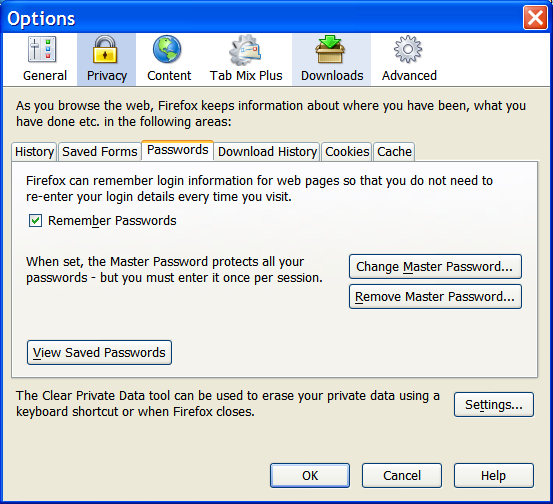
  • Click on the Privacy tab, and click on the Passwords sub-tab
  • Press the 'Change Master Password' button.
  • Enter a strong password (see the following article for creating a strong password)
  • Press the OK button
Restart Firefox, then go to a web site that requires you to enter a password. A dialog will pop-up asking you to enter your master password, enter it then press the OK button. From then on until you close Firefox all your passwords will be available to you.

Monday, August 28, 2006

Windows XP: Security Center Control Panel

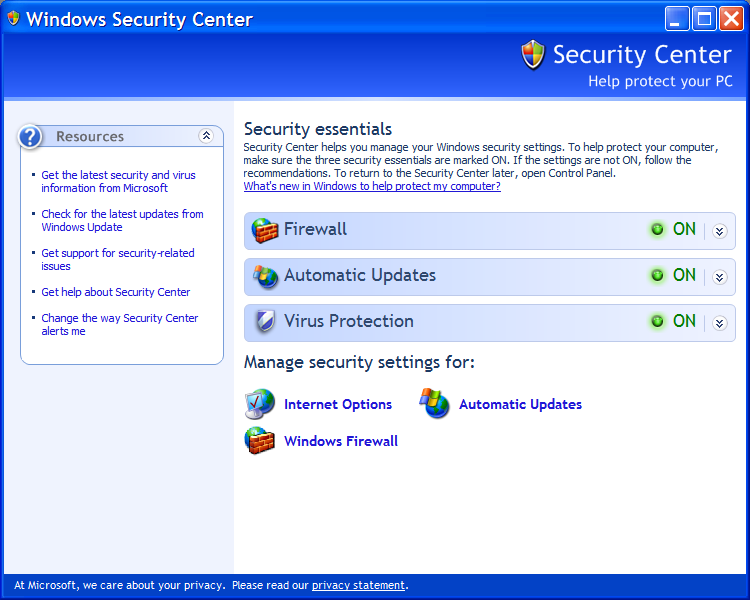
In Windows XP Service Pack 2, Microsoft introduced a great utility called the Security Center. Its a control panel that you can go to check the status of your computer's defenses. This control panel displays the status of your Firewall, automatic updates, and anti-virus protection.

If you want to quickly assess the level of your computer's protection this is the place to start. Next to each of the security services, there should be a green light icon. This indicates that the security service is operational and recognized by the Security Center. If a service has been turned off for some reason, or it can't detect the status of this service then you will be notified.

Note: Most third party firewalls and anti-virus applications have been updated to take advantage of this feature. If you're running an older version of these security services, contact the company that makes this software and check if they have any updates available to rectify this problem.

If these notifications are bothering you because one of your services is not being recognized by the Security Center, there is a way to disable this feature. In the Resources pane click the 'Change the way Security Center alerts me' link. From here you can disable or enable any of these notifications.

Friday, August 25, 2006

Windows XP: Tool To Help Fix Network Connection Problems

Microsoft has created a network diagnostic tool that can help you fix network connection problems with your cable or DSL broadband connection. After you install the tool, it can be run from within Internet Explorer.

When it runs its tests, it uses the MICROSOFT.COM sites, and will report back what it finds. This tool can perform the following tests:
  • IP configuration
  • Default gateway
  • Winsock
  • DNS
  • Firewall
  • Internet connectivity validation
To use the tool, open Internet Explorer and select 'Diagnose Connection Problems' from the Tools menu. You can also run it from the Run... command, type "%WINDIR%\NETWORK DIAGNOSTIC\XPNETDIAG.EXE", and then press the OK button.

This tool is not designed to be sophisticated and return detailed results that might be expected by someone who knows something about TCP/IP. If you want more detailed results use some of the MS-DOS command line tools.

Thursday, August 24, 2006

Diagnostics: Get Back Your Lost Files: File Recovery Software (article)

ExtremeTech reports: "Of course, prevention (in this case read "backup") is the best medicine when it comes to lost files, whether as a result of disk malfunctions or your mistakenly deleting them. But for those of us with less foresight, there's utility software that can save our skins when it comes disappeared files. Today, we investigate three leading software products that claim to be able to find and recover files you've deleted or lost to a bad disk drive or media: iolo technologies' Search and Recover 4, Executive Software's Undelete 5, and Digital Photo Recovery 2.0.3 from Galaxy."

Every now and then you or someone you know may lose a file or a whole drive and want to recover the lost data. ExtremeTech wrote a very good article on three different file recovery software packages that are currently available. If you have never used this type of software before, this article provides some background on the current generation of these utilities.

Wednesday, August 23, 2006

Security: Using a Rootkit Detection Tool

Rootkits are becoming an increasingly dangerous problem for networked computers, they're constantly becoming more sophisticated, and getting better at evading detection software. This means that your detection methods and tools have to become more effective in order to find and remove this software.

Sysinternals is offering a freeware tool called RootkitRevealer, that can detect some rootkits. Used in conjunction with good anti-virus and malware detection tool you should be able to detect most rootkits if they have invaded your system.

If you don't know what a rootkit is, here is a definition: A rootkit is a collection of tools used by a hacker or a malicious program to try to gain administrator access to your computer. If a hacker is using a rootkit to take advantage of your system, he will generally do this to steal data or cause damage. If a malicious program is trying to break into your system, it will generally open a backdoor for a hacker to take over your system or monitor your keystrokes so it can steal your passwords. Rootkits will also generally modify your computer system files to avoid detection.

Tuesday, August 22, 2006

Windows XP: Font Properties Extension

If you right-click on any font in Windows you will get some basic information about that font. Although if you want more detailed information Microsoft offers the Font Properties Extension that displays information such as the font origination and copyright, the type sizes to which hinting and smoothing are applied, and the code pages supported by extended character sets.

To install the program download it from the web page, then run it, and follow the prompts.

All you have to do is open the Fonts folder (in the Control Panel folder), then right-click on the font (TrueType or OpenType) you want to get information about, and select Properties. A font dialog will display with a lot of extra tabs.

Monday, August 21, 2006

Windows XP: Change the Print Spooler Folder Location

The print spool folder on your hard drive is used to queue print jobs until they are ready to be printed. Without this feature you'd have to wait until a print job was finished before you use other programs on your computer.

The spool folder is generally located on the same partition where the Windows system files are installed. If that partition starts getting low on free space, you can move this folder to a different location.

Follow the instruction below to move this folder:
  • Open the Windows Explorer (from the Start menu, select 'My Computer').
  • Create a new folder on a different drive that you want to use for your new print spool folder. Click the 'Make a new folder' link under 'File and Folder Tasks' in the left pane, then give the folder a name.
  • From the Start menu, select 'Printers and Faxes'.
  • From the File menu, click 'Server Properties'.
  • Click the Advanced tab.
  • In the 'Spool folder' field, enter the path for the new folder you created earlier.
  • Press the OK button
  • When the 'Printer Server Properties' dialog displays, press the Yes button.


Friday, August 18, 2006

Live.com: The Windows Portal (Updated)

In November of last year Microsoft released their Live.com site, with a few basic services. Since then they really expanded their offering with several new web applications and services (for example: domain name and web site hosting). The site also offers really nice downloadable applications as well (see the list below).

I really like the consistent interface across most of the applications, and how some of them are integrated together. I hope to continue to see more of this in the future as they release new services.

If you're curious about the difference between Live.com and MSN.com. From my understanding, Live.com will host all the web applications and services, and MSN will continue to be the content, news and information provider.

Below is a brief summary of all the Live.com applications and services:
Downloadable Applications

The software listed below are applications that you download and install on your local computer.
  • Windows Live Writer: This program was just released today, its WYSIWYG blog authoring tool that allows you to compose blog entries for Windows Live Spaces, Blogger, LiveJournal, TypePad, WordPress (and many others).
  • Windows Live Messenger: Microsoft's next generation instant messaging client. Now includes VoIP and video conferencing.
  • Windows Live Toolbar: Search the web, protect yourself against fraud, find files on your local computer.
  • Windows Live OneCare: Microsoft's new anti-malware (virus, spyware, and more.), firewall, tune-up, and more.

Coming Soon to Live.com

Below is a list of applications that Microsoft is getting ready to release.
For the latest information, on new or updated applications and services check out the Windows Live Ideas page. This is where they post all the latest updates to the site.

Thursday, August 17, 2006

Software: CDBurnerXP Pro

Recently one of my readers requested a free program for burning CDs for Windows. I turned him on to a program called CDBurnerXP Pro. This is one of the better free CD/DVD burning applications out there.

With this software you can burn CD-R, CD-RW DVD+R/RW DVD-R/RW discs. Below is a list of some of the features of this program:
  • Burns audio-CDs with and without gaps between tracks.
  • Supports most IDE, USB, Firewire and SCSI drives.
  • Burn and create ISO-files.
  • Creates bootable discs.
  • BIN/NRG to ISO converter, simple cover printing.
  • Supports: Windows 98/ME/2000/XP/2003 Server.
  • And more.

Wednesday, August 16, 2006

Software: Zapr (Simple File Sharing)

Zapr is an application that you download and install, that allows you share specific files (only the ones you select) on your computer with other people across the Internet. All you have to do is make the URL available to the people whom you want to have access to the files.

You can post the URL in a blog, or send it via e-mail or IM. Here is an example of what the URL looks like: http://zapr.net/userName/computerName/xxxxxx

The advantage to using Zapr, is that theres no file size restrictions, no need to upload the file somewhere, no sending an attachments, and finally its free. There is also no need for recipients to download and install the Zapr application or register themselves with the service to access the files.

Note: Zapr requires Windows XP with .Net Framework 2.0