Friday, September 01, 2006

Windows XP: Removing Fonts

Overtime as you install new programs on your computer new fonts can be installed without your knowledge. As more fonts are added, finding the right font for your documents will get harder and harder. Another result of having too many fonts installed in Windows is that it can increase the boot time of the OS.

Warning: Be careful which fonts you delete, some of these fonts are required by the OS or certain applications. By deleting certain fonts it might cause some problems, so use care.

To remove fonts from Windows, just follow the instructions below:
  • Under the Start menu, Open Control Panel folder.
  • Open the Fonts folder.
  • Select the font(s) you want to remove, from the Edit menu select Copy.
  • Create a new folder on the desktop.
  • Open new the folder and right-click an empty area in the window and select Paste. This will make a backup copy of the fonts that you're going to delete.
  • Return to the Fonts folder, right-click the selected fonts and then click Delete.
If you experience a problem with your OS or application, you will need to reinstall the fonts from the backup folder that you created on your desktop. See the following article on how to reinstall the fonts back into your OS.

Thursday, August 31, 2006

Windows XP: Disabling Devices

There are times that you may need to disable a device driver for diagnostic or performance reasons. For example, if you think a device driver is preventing your computer from working properly, you can disable it to see if it fixes the problem. Also, by disabling unused drivers you may help decrease boot time of your computer because it doesn't have to load them.

To disable a device driver, follow the instructions below:
  • From the Start menu, right-click My Computer and select Properties.
  • Click the Hardware tab and press the 'Device Manager' button.
  • Expand the category that contains the device that you want to disable.
  • Right-click on the device and select Disable.
The device should now be disabled and should remain that way until you re-enable it. To re-enable it use the same instructions above, except select Enable instead of Disable.

Wednesday, August 30, 2006

Windows XP: Professional x64 Edition

x64 Computing History in brief: First Intel created a 64-bit processor called Itanium. The processor's cost and slow adoption led AMD to create a x86-64 hybrid CPU. This was popular solution among end users, and was adopted by Microsoft in Windows XP and Vista x64 editions. Intel soon follow suit; first reluctantly, then full-bore. The newer Core 2 CPUs, including the mobile versions, are true 64-bit processors, as are AMD's Athlon 64 and Turion 64 lines.
When the first x64 processors were initially released Windows could not take advantage of the extended 64-bit instructions. Then several months later Microsoft released the Windows XP Professional x64 Edition. (Note: there's very little functionality difference between Windows XP Professional 32-bit and 64-bit editions.)

The two biggest problems with transitioning to the x64 platform are two things, 32-bit application compatibility, and 64-bit driver support. When the Windows x64 edition first showed up, there was little software that could run natively in 64-bit mode, and since then more and more software has been making the transition.

Advantages of 64-Bit Processors
There are two advantages of using a 64-bit processor. One, it can handle twice as much information in the same clock cycle as a 32-bit processor. This is useful for data intensive applications (such as scientific applications, databases, etc.).

Two, these processors can also handle a lot more memory then their predecessors. For example, Windows XP x64 is currently limited to 128GB of physical memory and 16TB of virtual memory. This is an artificial limit that could be increased if Microsoft wants.

Application Compatibility
The Windows XP x64 edition was the first major processor platform transition since Windows 95. Windows 95 was the first version of Windows to fully support 32-bit applications, but it also remained backwards compatible with the older 16-bit applications. The Windows XP x64 edition is Microsoft pushing the Windows platform to the next level again.

Most 32-bit applications should be able to work with the Windows x64 edition, but there are some exceptions. Windows x64 has to use a 32-bit emulation layer to run older 32-bit applications (AKA Windows on Windows 64 or WOW64). This is because the newer 64-bit processor can only run in one of two modes 32 or 64-bit. When its in 64-bit mode, it needs to use the 32-bit emulation layer to run 32-bit software. This also means that 32-bit applications will run slower in 64-bit mode.

There are two types of applications that won't run in Windows x64, they're 16-bit and 32-bit apps running in kernel mode. There are not a lot of 16-bit applications that are still around, so this should not be an issue. Although, there is still a chance that some modern applications can still contain older 16-bit code, so you will need to test them.

Drivers Support
When Windows XP x64 edition first hit the market, there was limited hardware driver support from manufactures. Although over time that has changed, but you still need to validate that there are 64-bit versions of drivers available for the hardware that you want to use. The main thing holding back the development of these drivers is the device manufactures have been slow to update or create these drivers for their hardware.

Tuesday, August 29, 2006

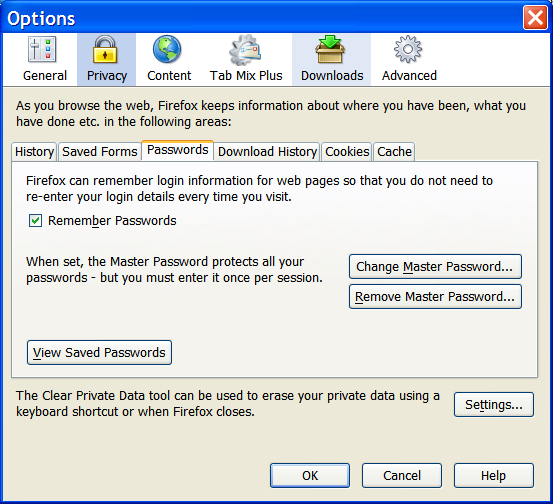
Firefox: Secure Password Manager

Do you rely on Firefox's integrated password manager to remember the passwords for all the different web sites that you visit? This is a great feature, although by default its not password protected, which means that anyone using your account on your computer can then access all your secure online accounts.

To prevent this from happening, you can set a master password so that anyone using your account in Firefox can't just use your web site passwords without knowing it. Follow the instructions below to set a master password:
  • Launch the Firefox browser.
  • From the Tools menu, select Options...
  • Click on the Privacy tab, and click on the Passwords sub-tab
  • Press the 'Change Master Password' button.
  • Enter a strong password (see the following article for creating a strong password)
  • Press the OK button
Restart Firefox, then go to a web site that requires you to enter a password. A dialog will pop-up asking you to enter your master password, enter it then press the OK button. From then on until you close Firefox all your passwords will be available to you.

Monday, August 28, 2006

Windows XP: Security Center Control Panel

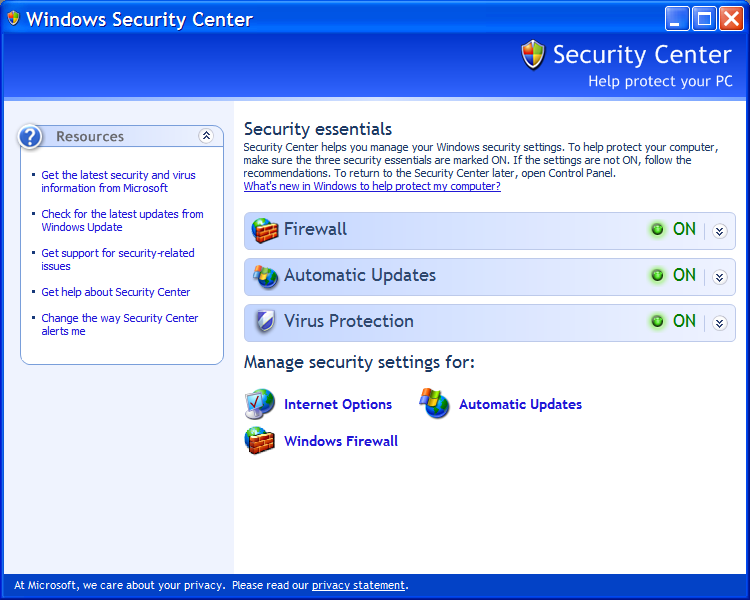
In Windows XP Service Pack 2, Microsoft introduced a great utility called the Security Center. Its a control panel that you can go to check the status of your computer's defenses. This control panel displays the status of your Firewall, automatic updates, and anti-virus protection.

If you want to quickly assess the level of your computer's protection this is the place to start. Next to each of the security services, there should be a green light icon. This indicates that the security service is operational and recognized by the Security Center. If a service has been turned off for some reason, or it can't detect the status of this service then you will be notified.

Note: Most third party firewalls and anti-virus applications have been updated to take advantage of this feature. If you're running an older version of these security services, contact the company that makes this software and check if they have any updates available to rectify this problem.

If these notifications are bothering you because one of your services is not being recognized by the Security Center, there is a way to disable this feature. In the Resources pane click the 'Change the way Security Center alerts me' link. From here you can disable or enable any of these notifications.

Friday, August 25, 2006

Windows XP: Tool To Help Fix Network Connection Problems

Microsoft has created a network diagnostic tool that can help you fix network connection problems with your cable or DSL broadband connection. After you install the tool, it can be run from within Internet Explorer.

When it runs its tests, it uses the MICROSOFT.COM sites, and will report back what it finds. This tool can perform the following tests:
  • IP configuration
  • Default gateway
  • Winsock
  • DNS
  • Firewall
  • Internet connectivity validation
To use the tool, open Internet Explorer and select 'Diagnose Connection Problems' from the Tools menu. You can also run it from the Run... command, type "%WINDIR%\NETWORK DIAGNOSTIC\XPNETDIAG.EXE", and then press the OK button.

This tool is not designed to be sophisticated and return detailed results that might be expected by someone who knows something about TCP/IP. If you want more detailed results use some of the MS-DOS command line tools.

Thursday, August 24, 2006

Diagnostics: Get Back Your Lost Files: File Recovery Software (article)

ExtremeTech reports: "Of course, prevention (in this case read "backup") is the best medicine when it comes to lost files, whether as a result of disk malfunctions or your mistakenly deleting them. But for those of us with less foresight, there's utility software that can save our skins when it comes disappeared files. Today, we investigate three leading software products that claim to be able to find and recover files you've deleted or lost to a bad disk drive or media: iolo technologies' Search and Recover 4, Executive Software's Undelete 5, and Digital Photo Recovery 2.0.3 from Galaxy."

Every now and then you or someone you know may lose a file or a whole drive and want to recover the lost data. ExtremeTech wrote a very good article on three different file recovery software packages that are currently available. If you have never used this type of software before, this article provides some background on the current generation of these utilities.

Wednesday, August 23, 2006

Security: Using a Rootkit Detection Tool

Rootkits are becoming an increasingly dangerous problem for networked computers, they're constantly becoming more sophisticated, and getting better at evading detection software. This means that your detection methods and tools have to become more effective in order to find and remove this software.

Sysinternals is offering a freeware tool called RootkitRevealer, that can detect some rootkits. Used in conjunction with good anti-virus and malware detection tool you should be able to detect most rootkits if they have invaded your system.

If you don't know what a rootkit is, here is a definition: A rootkit is a collection of tools used by a hacker or a malicious program to try to gain administrator access to your computer. If a hacker is using a rootkit to take advantage of your system, he will generally do this to steal data or cause damage. If a malicious program is trying to break into your system, it will generally open a backdoor for a hacker to take over your system or monitor your keystrokes so it can steal your passwords. Rootkits will also generally modify your computer system files to avoid detection.

Tuesday, August 22, 2006

Windows XP: Font Properties Extension

If you right-click on any font in Windows you will get some basic information about that font. Although if you want more detailed information Microsoft offers the Font Properties Extension that displays information such as the font origination and copyright, the type sizes to which hinting and smoothing are applied, and the code pages supported by extended character sets.

To install the program download it from the web page, then run it, and follow the prompts.

All you have to do is open the Fonts folder (in the Control Panel folder), then right-click on the font (TrueType or OpenType) you want to get information about, and select Properties. A font dialog will display with a lot of extra tabs.

Monday, August 21, 2006

Windows XP: Change the Print Spooler Folder Location

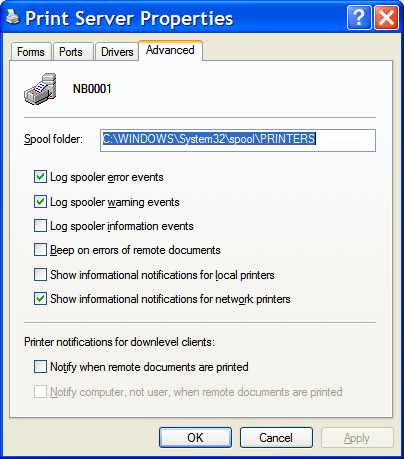
The print spool folder on your hard drive is used to queue print jobs until they are ready to be printed. Without this feature you'd have to wait until a print job was finished before you use other programs on your computer.

The spool folder is generally located on the same partition where the Windows system files are installed. If that partition starts getting low on free space, you can move this folder to a different location.

Follow the instruction below to move this folder:
  • Open the Windows Explorer (from the Start menu, select 'My Computer').
  • Create a new folder on a different drive that you want to use for your new print spool folder. Click the 'Make a new folder' link under 'File and Folder Tasks' in the left pane, then give the folder a name.
  • From the Start menu, select 'Printers and Faxes'.
  • From the File menu, click 'Server Properties'.
  • Click the Advanced tab.
  • In the 'Spool folder' field, enter the path for the new folder you created earlier.
  • Press the OK button
  • When the 'Printer Server Properties' dialog displays, press the Yes button.


Friday, August 18, 2006

Live.com: The Windows Portal (Updated)

In November of last year Microsoft released their Live.com site, with a few basic services. Since then they really expanded their offering with several new web applications and services (for example: domain name and web site hosting). The site also offers really nice downloadable applications as well (see the list below).

I really like the consistent interface across most of the applications, and how some of them are integrated together. I hope to continue to see more of this in the future as they release new services.

If you're curious about the difference between Live.com and MSN.com. From my understanding, Live.com will host all the web applications and services, and MSN will continue to be the content, news and information provider.

Below is a brief summary of all the Live.com applications and services:
Downloadable Applications

The software listed below are applications that you download and install on your local computer.
  • Windows Live Writer: This program was just released today, its WYSIWYG blog authoring tool that allows you to compose blog entries for Windows Live Spaces, Blogger, LiveJournal, TypePad, WordPress (and many others).
  • Windows Live Messenger: Microsoft's next generation instant messaging client. Now includes VoIP and video conferencing.
  • Windows Live Toolbar: Search the web, protect yourself against fraud, find files on your local computer.
  • Windows Live OneCare: Microsoft's new anti-malware (virus, spyware, and more.), firewall, tune-up, and more.

Coming Soon to Live.com

Below is a list of applications that Microsoft is getting ready to release.
For the latest information, on new or updated applications and services check out the Windows Live Ideas page. This is where they post all the latest updates to the site.

Thursday, August 17, 2006

Software: CDBurnerXP Pro

Recently one of my readers requested a free program for burning CDs for Windows. I turned him on to a program called CDBurnerXP Pro. This is one of the better free CD/DVD burning applications out there.

With this software you can burn CD-R, CD-RW DVD+R/RW DVD-R/RW discs. Below is a list of some of the features of this program:
  • Burns audio-CDs with and without gaps between tracks.
  • Supports most IDE, USB, Firewire and SCSI drives.
  • Burn and create ISO-files.
  • Creates bootable discs.
  • BIN/NRG to ISO converter, simple cover printing.
  • Supports: Windows 98/ME/2000/XP/2003 Server.
  • And more.

Wednesday, August 16, 2006

Software: Zapr (Simple File Sharing)

Zapr is an application that you download and install, that allows you share specific files (only the ones you select) on your computer with other people across the Internet. All you have to do is make the URL available to the people whom you want to have access to the files.

You can post the URL in a blog, or send it via e-mail or IM. Here is an example of what the URL looks like: http://zapr.net/userName/computerName/xxxxxx

The advantage to using Zapr, is that theres no file size restrictions, no need to upload the file somewhere, no sending an attachments, and finally its free. There is also no need for recipients to download and install the Zapr application or register themselves with the service to access the files.

Note: Zapr requires Windows XP with .Net Framework 2.0

Windows XP: Removing Unused Device Drivers

When you install a new piece of hardware on your computer, you generally install a device driver that tells the OS how to access the new device. Later, if you remove the hardware from your system, the device drivers will still remain installed. These drivers will continue to be loaded even though they're not being used, and consume system resources.

To find and remove these unnecessary drivers follow the instructions below:
  • From the Start Menu, open the Control Panel folder.
  • Double-click the System control panel.
  • Click the Hardware tab, and press the 'Device Manager' button.
  • In the 'Device Manager' window, from the View menu, select 'Show Hidden Devices'.
  • Expand the various nodes of the device tree and search for the grayed out icons, which indicate unused device drivers.
  • To remove an unused device driver, right-click the icon and select Uninstall.

Monday, August 14, 2006

Internet: Test Your VoIP Connection

Do you use a Voice over IP (VoIP) provider such as Skype or Vonage to make long-distance phone calls to your friends, family, or colleagues? If you do, you might want to test your Internet connection's ability to handle this type of traffic.

TestYourVoIP.com will load a Java VoIP client and make a call from your computer to one of their Brix's U.S. or international test location and report the results back to you. This is a free service.

Note: This site requires that Java be installed on your local computer to perform the test.

Friday, August 11, 2006

Software: Save time with click-free browsing (video)

CNET News.com reports: "CNET's Rafe Needleman talks to executives from Browster and Cooliris about their respective products and what the future holds for click-free browsing."

Downloads (Note: Both of these downloads work with Internet Explorer and Firefox):

Thursday, August 10, 2006

Windows XP: Updating Device Drivers

Peripheral manufactures regularly update the device drivers for their hardware (such as: video cards, printers, etc.) . They generally will do this to fix known problems or add new features. Device drivers are programs that tell the OS how to use a device that is attached to it.

These updated drivers are generally available on the manufacturer or Microsoft's web site for download (Note: it's always best to start at the manufacturer's web site first). After you download the updated drivers, you will generally have to extract the file from a compressed archive to install them. It is always a good idea to read the drivers installation instructions before installing it.

Another way to update the device driver is to use the 'Update Driver' button for the peripheral in the 'Device Manager' console.
  • From the Start menu, right-click on 'My Computer' and select Manage.
  • From the 'Computer Management' console select the 'Device Manager'
  • Find the of the device you want to update, and , double-click on it.
  • Click the Driver tab.
  • Press the 'Update Driver' button to open the Hardware Update Wizard
  • Select if the system can connect to Windows Update to search for the driver, and then press the Next button. (Select Yes if you want to check Windows Update, select No if you already have the driver)
  • Select 'Install the software automatically' if you want the system to make its best guess on how to update the driver or choose 'Install from a list or specific location' if you already have the updated driver. Then press the Next button.
  • Windows will then search for an updated driver and notify you if the updated driver has been found.
  • Press the Finish button when done.

Wednesday, August 09, 2006

Create a Virtual Office (on the Cheap)

Do you need setup a home office to run a small business or work from home, and don't want to spend a lot of money? Using your computer, and a high speed Internet connection you can replace a lot of older technologies.

Making/Receiving Phone Calls & Voicemails
Did you know that you can use Skype as a low-cost way of making and receiving calls from your computer. You can also receive voicemail when you're busy or off-line. All you need to get started is a headset with a microphone. There are no setup fees, monthly fees, or the need to purchase additional hardware to use it. You only pay for the phone calls you make or receive.

Below is a list of services that Skype offers:
  • SkypeIn: Receive calls via your computer from a personal phone number
  • SkypeOut: Make calls from your computer to other phones and mobiles, all over the world.
  • Voicemail Skype: Receive voicemail messages when you're busy or offline.
If you don't want to use your computer to make phone calls, consider using a VoIP service like Vonage. It allows you to use your regular phones that are already in your house. Although you will have a setup fee, monthly fees, and new hardware costs for going this route. Contact the VoIP provide that you want to use for more information about their service.

There are several VoIP service providers, I only touched the surface of this subject with the most popular ones. I encourage you to shop around for the best deal and services that you want. If you just need a public phone number to receive voicemail, there's a service called PrivatePhone that offers a free voice mailbox.

Web and E-mail Services
There are several free e-mail and web hosting providers, but it doesn't look professional to have your business email address look like: johndoe2016@aol.com. If you want a web site, I would also not recommend using free web hosting services. You don't want your web site URL looking like: http://www.geocities.com/samswidgets1980/. No one will believe that you're a legitimate business.

Domain registers like GoDaddy offers low cost web hosting and domain registration, you can also get a personalized e-mail address. For example, if your business name was Sam's Widgets, and you purchased a domain like samswidgets.com you could create an e-mail address like sam@samswidgets.com. You can also use the domain for your web site, like www.samswidgets.com

For a list of available services and fees, check out the following page.

Sending and Receiving Faxes
Being able to send faxes these days has become less important when e-mail is so readily available. Although it's still a popular technology option for sending certain types of business documents especially if they have a signature on it.

My computer has a Fax modem, but I still need access to an analog phone to use it. Then if I need to capture image of a document, I will need a scanner. Scanners are cheap these days, but if you don't have a need for one too often then they're not really worth it. There are also several good multi-function printers available, you might want to consider getting one of these if you want to save space and are only going to use it once in a while.

If you don't have an analog phone line, but have a need to send and receive faxes there is a service called eFax. They allow you to send and receive faxes for a fee. They also offer a free service which allows you to receive faxes for free via email, from a personal non-local number.

There is another service called faxZERO that allows you to send a fax for free to anywhere in the U.S. and Canada.

Postal Services
If you need to send packages, all the major package carriers offer free home and business pickup services, including the US Postal service (USPS). The USPS offers a service called Click-N-Ship for printing postage and labels, then you can request a pickup for the following day. You also might want to consider purchasing a scale to avoid overpaying postage.

If you want a special address to have all your business mail sent, you have one of two choices. You can purchase a P.O. Box from the local USPS office, or you can use a private mailbox from one of the many businesses that offer this service (such as: Mailboxes Etc.).

There are a few advantages to having a private mailbox vs. P.O. Box. One, you can get packages delivered to a P.O. Box. Two, the address looks like an actual street address rather then some postal box number.

Tuesday, August 08, 2006

Best Free Online Storage Sites (1GB and More)

There are literally hundreds of storage sites out on the Internet that offer capacities that range from a few megabytes to a few gigabytes. I have visited a lot of them, and created a list of the best sites.

Only sites that offered 1GB or more of storage were listed, anything less was too small. If you need more storage (and fewer restrictions) many of these sites offer premium plans for a fee.

The sites are placed into two categories based on the type of storage they offer:

Temporary Hosting Sites
Are you looking for a place to temporarily hold a large file so that you can email it, or to host content (such as media) for your web site or blog. Then check out the list of sites below, they allow you to quickly upload just about any file where it can be access by people whom you make its link available to. The file you upload will generally automatically be deleted after a specific amount of time has passed.
Note: The amount of storage, and how long the file can be stored will vary, check the site's storage policy for specific details.
Online File Storage
Are you looking for a site that specializes in online file storage, and won't automatically delete your files if you have not used them in a while. These sites are great for holding backups of your files, or acting as a transfer point for moving data from one computer to another computer (such as from home to work and back).
Note: Most of these sites have some type of transfer limits (i.e.: how much you can upload or download) which vary from site to site.

Software: Mounting ISO Images Using a Virtual CD-ROM Drive

Have you ever had the need to burn an ISO image to a CD disk? If you don't know what an ISO image is, its an exact copy of a CD-ROM that is stored in a file so that it can be put on a hard drive, or transmitted across a network to another computer.

To turn an ISO image back into a CD, you need a blank CD-ROM disk, a CD-Writer drive, and a program that can read the ISO image and burn it to the drive. This process is not complex, but I will save it for another article.

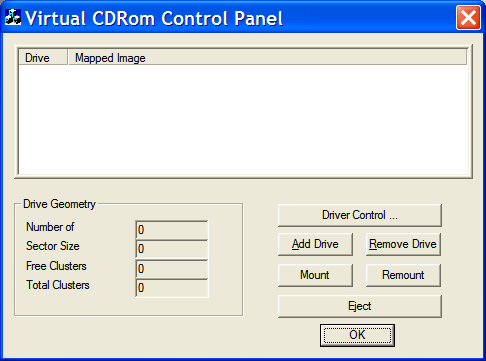
Well if you're like me I generally won't burn a CD-ROM unless I have to, and if I do I use CD-RW so I don't have a million half used CDs sitting around the house. Although, if you have an ISO file that you need to get a file off, or a program to install check out Microsoft's Virtual CD-ROM Control Panel.

This control panel allow you to mount the ISO image by creating a virtual CD-ROM Drive. As far as the operating system is concerned this will look like a real CD-ROM drive. Although in reality its just the ISO image that is being treated like a real disk.

Notes:
  • This program only runs under Windows XP
  • This software is unsupported by Microsoft, and contains no setup file.
  • The interface is very basic, so don't expect a polished tool.
  • Make sure to read the README.TXT


Thursday, August 03, 2006

Windows XP: Enabling Remote Desktop (Advanced)

Note: This tip will only work on Windows XP Professional and not the Home edition.

Using Remote Desktop, you can take control over your local Windows system from a remote computer. To get this to work for you need the following things:
  • The computer you're going to take over has to have Windows XP Professional installed on it with Remote Desktop enabled, and must be attached to a network. You will also need the local computer's IP address (i.e.: 192.168.1.100) or its network computer name (i.e.: \\computer01). You can use the 'IPCONFIG /ALL' to get this information.
  • You need a local account with a password on the computer you're going to take over.
  • On the remote computer you need the Remote Desktop Connection software installed (check: Start menu | All Programs | Accessories | Communications), and to be able to make a network connection to the computer you want to take over.
Follow the instructions below to enable Remote Desktop:
  • Under the Start menu, right-click 'My Computer' and select Properties.
  • Click the Remote tab, then check the 'Allow users to connect remotely to this computer' check box.
  • Press the 'Select Remote Users' button, and then press the Add button.
  • In the 'Select Users' dialog box, enter the name of the user you want to be able to connect to this computer and then press the OK button.
  • Press the OK buttons to close the rest of the dialogs.
Note: If you're having problem connecting to the computer with the remote desktop enabled, your firewall is probably preventing the connection. If you're using the Windows Firewall, check to see if you have the 'Remote Desktop' exception under the Exception tab in the Windows Firewall control panel. Otherwise follow the instructions on in this article.

Wednesday, August 02, 2006

Windows XP: Scheduling Disk Defragmentation

You should consider running the Disk Defragmenter utility on a regular basis to keep your system running efficiently. If you don't know what disk fragmentation is, it's when parts of a file get scattered over the hard drive over time, which in theory will take longer for them to be retrieved when they're requested by the file system.

The Disk Defragmenter utility re-organizes the files on the drive in a more linear order so that they can be accessed more quickly. Although running this utility can take a long time to complete. There should also be no other programs executing while this process is happening.

To have this utility run automatically, you can use the Windows Task Scheduler to run this program at a time when the computer is not going to be in use.

To schedule this program to run as a task follow the instructions below:
  • Under the Start menu, open the 'Control Panel' folder (or select 'All Programs | Accessories | System Tools | Scheduled Tasks')
  • Double-click the 'Scheduled Tasks' applet.
  • Double-click the 'Add Scheduled Task' icon.
  • Right-click the folder, and select 'New > Scheduled Task'
  • Click on the icon that says 'New Task', and press F2, then give the icon a name like "Defragment Disk" and press Enter.
  • Double-click the icon, it will open up the task dialog window.
  • In the Run field, type "defrag.exe c: -v".
  • In the 'Start in' field, type "C:\".
  • In the 'Run as' field, enter a user account (i.e. ComputerName\UserName) with administrator access. Press the 'Set password' button, and enter a password for the account.
  • Click the Schedule tab to select the time and date(s) to want to run the task.
  • Press the OK button when done.

Tuesday, August 01, 2006

Security: Testing Your Browser Pop-Up Blocker

If you ever run your browser without its pop-up blocker enabled, you could get inundated with a lot of pop-up window SPAM. Most browsers do a reasonable job of blocking this garbage, but you may still get a few that will show up every once in a while.

To test how go your browsers pop-up blocker is working, go to this site and put your browser through its paces. You may be surprised (or not) how many different techniques people have developed to display pop-up windows on your screen.

Monday, July 31, 2006

Software: ZoneAlarm (Firewall Protection)

The Windows Firewall is only a one-way firewall, which means that it can only protect you from external network based malicious attacks from viruses, worms, and hackers. The problem with this type of firewall is it can't be used for protecting you against malicious software already installed on your computer.

ZoneAlarm is a two-way firewall which not only will protect you from external threats, but also from internal ones. Before any program can communicate with the Internet it must be authorized through the firewall. This is a great way to tell if there is malicious software (such as spyware) installed on your computer that you may not be aware of.

ZoneAlarm also includes an Internet lock feature which blocks Internet traffic while your computer is unattended. This feature can be activated automatically when your computer's screensaver comes on or after a set period of inactivity.

Note: ZoneAlarm is free for individuals and non-profit charitable organizations (excluding government entities and educational institutions).

Friday, July 28, 2006

Windows XP: Adding Toolbars to your Taskbar

The taskbar by default will generally contain the Start button, the Quick Launch toolbar, and the Notification Area. You can customize the taskbar, with additional toolbars such as the: Address, Windows Media Player, Links, Language Bar, and Desktop.

To add a toolbars:
  • Right-click the Taskbar, and select Toolbars, then select the toolbar you want to add.
To remove a toolbars:
  • Right-click the Taskbar, and select Toolbars, then select the toolbar you want to close.

Thursday, July 27, 2006

Software: Creating PDF Documents for Free

In an earlier article, I showed you a free/low cost program for making PDF documents. If you wanted to use the free version of the program you had to view ads in the program, or you had to buy it for about $10 if you didn't want to see the ads.

I recently found a new solution that is open source that is free for private or commercial use. The program is called PDFCreator, and its featured packed. Below is a brief list of some of the key features:
  • Create PDFs from any program that is able to print.
  • Encrypt PDFs and protect them from being opened, printed etc.
  • Send generated files via e-mail.
  • Create more than just PDFs, you can also make: PNG, JPG, TIFF, BMP, PCX, PS, EPS
  • Merge multiple files into one PDF

Wednesday, July 26, 2006

Software: Pando (Send Large Files to Anyone)

Sending large files (such as: videos, pictures, presentations, etc.) over the Internet can be difficult at times, especially if you're trying to use e-mail to do it. Most e-mail services limit the size of the attachments that you can send or receive to about 10MB.

I recently found a new piece of software that allows you to send files of any size to your family, friends, and other people. The software is called Pando. In order to send these files, you and the person that is receiving the files must install the Pando software client.

Tuesday, July 25, 2006

Firefox: Helping Speed Up Your Browser (FasterFox)

FasterFox can tweak Firefox to help speed-up your browsing experience. This program enables special Firefox features, such as web page pre-fetching that can make web pages load faster by retrieving them before you select them. This program can also tweak other browser settings to make your browsing faster.

When you first open up the extension, you will get three basic options to choose from to increase the speed of the browser: courteous, optimized, and turbo charged. You can also tweak these settings individually if you want more control.

As a bonus feature you can enable the page load timer that displays how long it took to load the page you're currently viewing in Firefox's status bar. There is also an option that will allow you to block popups from plug-ins.

Monday, July 24, 2006

Windows XP: Delete A User Profile

Every user that logs into Windows XP gets a profile created for them. In this profile, the user's application and system settings are stored, along with their files. Each user profile can consume a lot of space on your computer, mostly depending how much information is stored in them.

If you have user profiles on your computer that you no longer need, and you need to free up disk space on your hard drive. Then you might consider deleting these unused profiles.

Warning: User profiles can contain valuable files that you may need one day, you might want to backup and/or review the files in this directory before you delete it.
  • Right-click 'My Computer' and select Properties. This will display the System Properties control panel.
  • Click the Advanced tab and click the Settings button in the User Profiles area.
The 'User Profile' dialog will display showing all the individual profiles on your local computer and the size of each profile. From here you can select the individual profile you want to delete, press the Delete button, confirm your action and then your done.

Friday, July 21, 2006

Downloading Movies and Burning them to DVD (Legally)

CinemaNow is now offering the ability to download movies to your computer and watch them. You also have the option to burn the movie to a DVD disc that can be played in a standard DVD player. Then if want to you can also download and a label and cover art for that movie.

The movies cost between $9 to $14 each, and right now the selection of movies is limited (about 100+ movies). Hopefully if the service takes off, they will continue to expand their collection.

Thursday, July 20, 2006

Spy Sweeper 5.0 (review)

Are you looking for a good anti-spyware program, but are not sure which one to use? Spy Sweeper 5.0, recently received PC Magazine's Editor Choice award. Check out the article for a full review.

Thursday, July 13, 2006

Software: Free Antivirus Software (for one year)

If you're looking for just anti-virus software and not a complete 'security suite', then you might want to check out Computer Associates' eTrust EZ Antivirus software. Their now offering a one year trial version of it. If you want the two year subscription it only costs $19.95.

Here's the catch, this offer is for Microsoft Windows users, new customers only, and limited 1 per household.

Firefox Version 2.0 Beta Candidate Released (article)

PC Magazine reports: "The browser wars are heating up, as the first beta of Firefox 2.0 is due on Tuesday July 11th, and Internet Explorer version 7.0 is now on it's third beta release. ... Firefox fans, and browser junkies have an opportunity to get a jump on Tuesday's beta, as a public "release candidate" has been posted on the Mozilla FTP site. This nightly build is finally feature complete, although it's still not completely ready for mass consumption."

Tuesday, July 11, 2006

Software: Private Folder 1.0

Microsoft recently released Private Folder 1.0, this is a free program that lets you store your sensitive data on your computer in a password-protected folder. This tool is designed for the person who wants to protect their private data on a shared computer.

Note: This application requires you validate your computers with the Windows Genuine Advantage to make sure your copy of Microsoft Windows is legitimate before you can install it.

Monday, July 10, 2006

Software: Remote Disable USB Drives

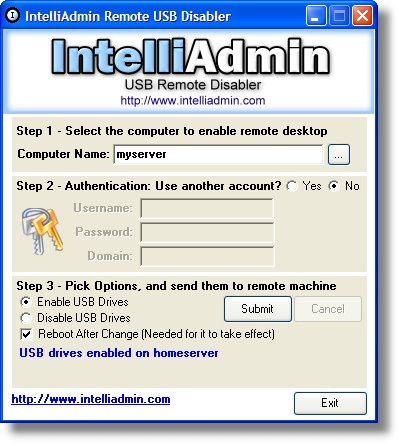
IntelliAdmin Remote USB Disabler allows you to remotely disable USB storage device on the local or a remote computer on your network. This program does effect USB Mice, keyboards, scanners, etc.

This program is a stand-alone application, so it doesn't required being installed on your local computer in order to run.

Friday, July 07, 2006

Juice (Listen to Pod Casts)

Do you like to listen to podcasts? There is a great free program called Juice (formerly know iPodder) that allows you to download, listen, and manage the podcasts that you want to hear.

Some of the main features of Juice include:
  • A built-in directory with thousands of podcast feeds.
  • An auto-cleanup, authentication, centralized feed management and much more.
  • Accessible for visually impaired users (Windows only)
  • Supports for more than 15 languages.
  • Supports for multiple media players.
  • Multiple-platform support (Windows, Mac, and Linux [soon]).

Thursday, July 06, 2006

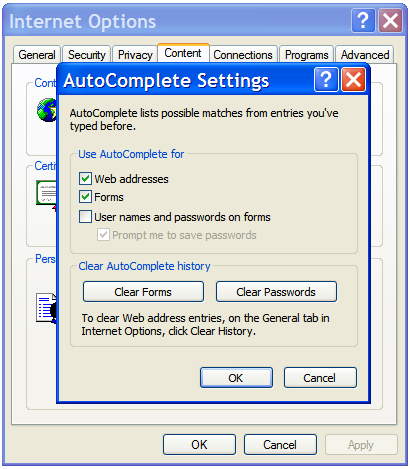
Internet Explorer: Stop Remembering Passwords

Internet Explorer can save and re-enter your passwords from different web sites for you. If you're using a shared computer you might want to disable this feature to prevent people from using your accounts.

To disable this feature:
  • Open Internet Explorer.
  • From the Tools menu, select 'Internet Options...'.
  • Select the Content tab.
  • Press the AutoComplete... button
  • Uncheck the 'User names and passwords on forms' checkbox.
  • Press the 'Clear Passwords' button.
  • Press the 'OK' buttons (three times).


Wednesday, July 05, 2006

Windows XP: Renable File and Folder Tasks Panes

In the Windows Explorer you can enable the left-hand task pane to provide quick access to several different operations that can be performed against a file or folder.


This feature can sometimes be disabled, so if you want to enable it you need to follow the instructions below:
  • Open Windows Explorer
  • From the Tools menu select 'Folder Options...'
  • Click the General tab.
  • Click the 'Show common tasks in folders.' radio button.
  • Press the OK button.

Tuesday, July 04, 2006

Security: Beating Keyboard Loggers

Public Internet kiosks have been known to have keyboard loggers installed on them. These loggers are used to capture the passwords you enter to access different secure sites. The problem is there's not an easy way to detect if a system has a logger installed on it.

There are two types of keyboard loggers, software or hardware based. The hardware based ones are the hardest to detect, because they can be hidden inside the keyboard itself.

There is one trick that you can use to help protect your password. What you need to do is add extra characters to the passwords you type. Then highlight the extra characters you added, and delete them before you press a button to submit the password. This can prevent your password from being properly recorded.

Note: beware of copying your password to the clipboard, some keyboard loggers can capture this information.

Here is an example:

This is the real password without the extra characters:
  • P@ssW0rd
Here is the password with extra characters added. Highlight and delete the extra characters:
  • P1@2s3s4W506r8d9

Monday, July 03, 2006

Creating PDF Documents

Do you want to know how to create PDF documents? To be honest its as easy as printing the document you want to create. If you don't already know what PDF documents are, its an application independent file format that allows the document to be read without the original application it was created with.

There is an application called PDF995, that is basically a printer driver that captures the output from almost any application and converts it into a non-editable PDF document. This applications comes in two versions, free or paid. The paid version only costs $9.95, and the free version requires you to view advertisements each time you use it.

Friday, June 30, 2006

Sending Large Email Attachments

Do you need to send someone a large file, and you're email provider won't allow you to send it because the file is too large. Below are two web sites that can help you send these large files. The only catch is that the file must be retrieved within seven days, or it will be deleted off the server.
  • Dropload:Temporarily place a file up to a 100MB.
  • YouSendIt: Temporarily place a file up to a 1GB.

Thursday, June 29, 2006

O'Reilly Open Books (Free Computer Books)

O'Reilly is making a number of its computer books available for free, under a concept they call 'Open Books'. These books are out of print or the author has requested that they be distributed for free. All the books are being published under what they call an 'open' copyright.

O'Reilly has partnered with Creative Commons and the Internet Archive, to address the licensing and digitizing challenges involved in bringing the Open Books to readers. They have also adopted the Creative Commons Founders' Copyright, which they're applying to hundreds of titles pending the author's approval.

Wednesday, June 28, 2006

More Free Online Storage

Are you looking for free online storage to store and share your photos, videos, and other large files with your friends and family. These sites are great for sending large files that email services won't send, and backing up your data.

Box.net is offering 1GB of free storage, if you need more they have fee-based plans for 5GB to 15GB of storage. As far as free online storage goes, this is a pretty good deal.

Tuesday, June 27, 2006

Windows XP: Slide Show Feature

I only recently discovered this feature, but I really like it. Windows XP has a built-in slide show folder function that doesn't require extra software to use it.

If you have a folder full of pictures, in the left task pane under 'Picture Tasks', click the 'View as a slide show' link. If you only want to see certain picture, just highlight them before you click the link.


When the slide show as activated, you can use the buttons in the toolbar to play, pause, move to the previous or next picture, or go to the end if the set of pictures. There are also some keyboard shortcuts that allows you to perform some more viewing functions:
  • SPACEBAR: Pauses or starts the slide show.
  • TAB: Turns on or off the slide show toolbar.
  • ESC: Exits the slide show.
  • Left Arrow, PAGE UP, or Up Arrow: Displays the previous picture in the folder.
  • Right Arrow, PAGE DOWN, or Down Arrow: Displays the next picture in the folder.
  • ENTER: Takes to you the next picture in the folder.
  • CTRL+K: Will rotate the image 90 degrees to the left.
  • CTRL+L: Will rotate the image 90 degrees to the right.

Monday, June 26, 2006

Reference: Type of Internet Access (updated)

Have you ever considered all the different type of Internet access we have these days. Most people might only think of cable, DSL, or dial-up as their only choices. Although, in reality there are several different types of access available all with very different advantages and disadvantages.

This list was created to be the most complete reference to the different types of Internet access available. It also provides a brief summary of each technology:
  • Dial-up: One of the oldest forms of Internet access, and is mostly used in areas that don't offer any other connection types. The maximum connection speed of this service is 56Kbps (and that's only theoretical). Dial-up has been slowly losing market share for years to faster technologies.
    • Pros: Inexpensive, and available more places then almost any other type of Internet access. All you need is a phone, modem, and an ISP account.
    • Cons: Very slow and unreliable when compared to other 'always on' Internet connections.
  • ISDN: One of the oldest form of high-speed Internet access, generally has a maximum bandwidth throughput of about 128Kbps. It is still available in some areas. It also used to be expensive, and difficult to setup, I am not sure if they have really improved this that much.
    • Pros: Its twice as fast as dial-up.
    • Cons: Limited availability, and speed.
  • Cable/DSL: Are the most popular forms of high-speed 'always on' Internet access available. It is available in several different speeds (1-6Mbps, and faster). These technologies are widely available, and the coverage is constantly being expanded. Although, its not available in all areas, contact your phone/cable provider to see if this is an option for you.
    • Pros: Fast connections, and different download speeds are available for different fees.
    • Cons: Generally requires you to get some form of extra cable/phone service when you sign up for it.
  • Cellular: Cellular providers such Sprint and Verizon offer high-speed Internet access using your cell phone via technologies like EV-DO networking. The speeds (from about 300kbps - 1.2Mbps) will vary greatly from location-to-location, and provider-to-provider. Its a great option to have if you're on the road in the middle of nowhere and need Internet access.
    • Pros: Its available anywhere you can get a cellular signal for that provider.
    • Cons: Can be expensive, and the speeds are limited.
    • Update: Some new laptops are now coming with a new ExpressCard slot, which offers fast cellular connections while on the road. Although the service is not cheap, its $59.99/month if you have a Verizon voice plan, or $79.99/month if you don't.
  • Wireless: This option is available in some metropolitan and rural areas. It can offer an alternative the cable, DSL or dial-up. Generally it doesn't require you to purchase extra services that you may not need. Intel is trying to push their technology called WiMAX into this area.
    • Pros: Fast connections, and different download speeds are available.
    • Cons: Coverage is limited. Prices and speeds will also vary widely from ISP to ISP.
  • Satellite: For people who want high-speed Internet access, but no other option is available. This service is generally available just about anywhere you have unobstructed line-sight access to the satellite.
    • Pros: Available almost anywhere, and different download speeds are available for different costs.
    • Cons: All satellite connections are high latency, which means the first few seconds of the connection are slow. This is because of physics and not technology, energy can only travel so fast. The equipment is also expensive.
  • FiOS: Verizon is offering FiOS (Fiber Optic Services) which is fiber to the home. This is one of the fastest Internet connections available for the home or small office, that is also reasonably priced. Cable, and DSL have current maximum speeds of about 1-6Mbps, while FiOS offers speeds up to 30Mbps.
    • Pros: One of the fastest ways to connect to the Internet.
    • Cons: Very limited availability for now.
  • Dedicated Circuit: This is an option used by most medium and large size businesses. The speeds that are available are amazing, but the prices that you pay for this service and the equipment are equally amazing. For more information contact your phone company or ISP.
    • Pros: Just about any speed is available to you, with very reliable access.
    • Cons: Very expensive, and requires equally expensive equipment.
This is kind of an honorable mention area. These technologies are what I would classify as 'experimental', but could one day be another type of Internet access that is available to you.
  • Power line: Basically your power provider would also be your ISP, and your Internet connectivity is over your existing power lines in your house. The technology only appears to be available in Europe for right now.
  • Gas line: Basically your gas provider would also be your ISP, and your Internet connectivity is over your existing gas line in your house. Currently there is no announcement when the technology will be available.
Notes:
  • All high-speed ISPs require you to have some type of proprietary networking equipment to use their service. Although, some ISPs will give you the equipment as part of the service and others will rent it to you.
  • All the speeds listed in the article reference the download speeds and not the upload speeds. Upload speeds are generally a fraction of the download speeds. Contact your ISP to get more information.
  • There are several types of DSL (such as ADSL, HDSL, IDSL, VDSL, and SDSL), each of these types of DSL technologies are designed to meet different needs of the ISP who is providing it.

Friday, June 23, 2006

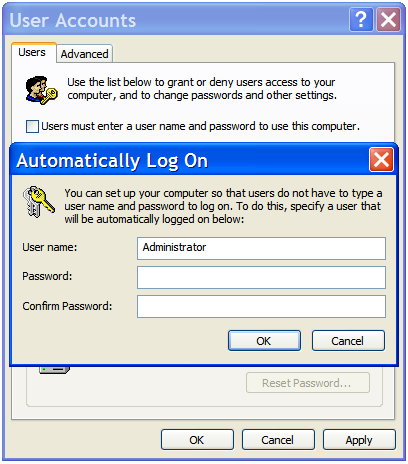
Windows XP: Automatically Logging In

Do you want to know how to make Windows XP bypass the logon screen, and automatically login to your user account when you turn on your computer? This setup is only recommended for those people who will be the only ones accessing the computer. It's not a good business practice to use this technique at work or where a computer is shared among multiple people.

Note: If your computer is a part of a domain (generally a work computer) this tip will not work.
  • From the Start menu, click Run...
  • In the Run... dialog box, type "control userpasswords2", and press OK button.
  • Uncheck the 'Users must enter a user name and password to use this computer' checkbox, and then press the Apply button.
  • In the 'Automatically Log On' dialog, enter the user name and password that you want to use to log into the computer.
  • Then press the next two OK buttons


Thursday, June 22, 2006

Free Macro Creation Utility

AutoHotkey is a free open-source keyboard and mouse macro utility for Windows. It can playback your mouse movements and key strokes freeing you from repetitive tasks.

You can also create custom hotkeys and abbreviations to playback these macros. You can even convert your scripts into executable file that can be run on computers that don't have AutoHotkey installed.

Wednesday, June 21, 2006

Windows Live Messenger

Windows Live Messenger has now formally been released. If you don't know what Windows Live Messenger is, it's the next-generation MSN Messenger client.

Some of the new features include:
  • PC-to-PC Calling
  • Enhanced video conferencing
  • Sharing Folders
  • Send SMS text message to mobiles phones
  • Windows Live Alerts
  • Interactive gaming service
  • Telephone calling
  • and more...
There is also integration with the many other Microsoft Live services, such as: Windows Live, Windows Office Live, Windows Live Local, etc.

System Requirements:
  • Microsoft Windows XP
  • Microsoft Internet Explorer version 6 SP1 or later must be installed on your computer, though it does not need to be your default.
  • Pentium 233MHz process (500MHz recommended)
  • 128MB of RAM - Minimum (256MB recommended)
  • 50MB of hard disk space for installation, 15MB to run the program.
  • 800 x 600 screen resolution - Minimum

Tuesday, June 20, 2006

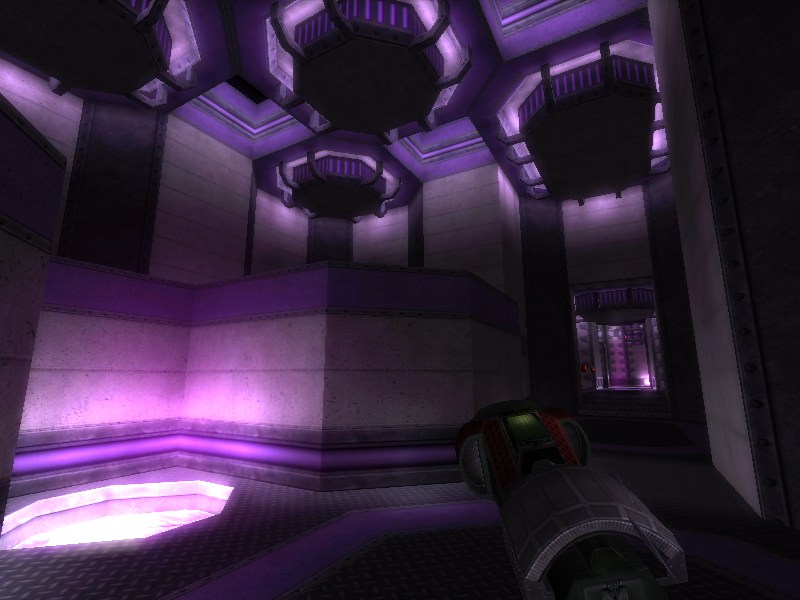
Nexuiz (Free 3D Deathmatch Game)


Nexuiz is a 3D deathmatch game who's goal is to return this genre back to its basics, with perfect weapon balancing and fast paced action. Currently the game has 17 maps to fight in, and 15 different player models to use. You can connect to the master server to play people from all over the world, or you can setup your own.

The game's content and source are GPL. Meaning, it is entirely free and any of it can be used in other free projects, even if modified. Nexuiz is based on the Quake1 engine, its source code along with its content is entirely GPL. Nexuiz will also use the Quake1 game code language, called QuakeC, which makes modding the gameplay of the game extremely easy.

Nexuiz will not require a high end system. Video cards such as a Geforce1 will be able to run Nexuiz, while higher-end video cards will be able to take advantage of the more advanced features such as realtime lighting and bumpmapping.

System Requirements
  • 200MB of hard drive space
High Quality (Realtime lights & shadows, bloom on, highly detailed maps, 1024x768 or higher)
  • A 1.5-gigahertz Intel Pentium 4 chip or AMD Athlon 1500
  • ATI9600 or 5700fx
  • 256MB of RAM
Low Quality (No realtime lights or bloom)
  • 800mhz
  • Geforce Video card min
  • 256MB of RAM

Monday, June 19, 2006

Free Internet Fax Sending Service

Faxes are almost a thing of the past for me, but every now and then I need to send one for personal reasons. Personally I hate the technology, but it still has its place in the business world for documents that you can't get or send via e-mail.

If you need to send a fax, and you don't have easy access to a fax machine then check out this site. Its called FaxZero which lets you send a fax to any fax machine in the United States (including Puerto Rico) or Canada for free. You don't need a fax machine yourself, but you do need a valid e-mail address.

Just fill out the fax form. Be sure to include your valid e-mail address and carefully type the Confirmation Code. Type the text of your fax or attach a file (a Microsoft Word document or PDF file), then click the Send Free Fax Now button.

Note: This service is supported by advertising on the web site and on the cover pages of the free faxes you send.

Friday, June 16, 2006

Free Computer Book Offer Until the End of July

There is a site called "In Pictures" which is offering basic computer how-to books that are based on pictures, not just text. These books demonstrate how to use different applications (such as Microsoft Office, OpenOffice, etc.) and operating systems (like Microsoft Windows, Apple OS X, etc.).

Here are some sample pages from a typical In Pictures book. These books are meant for the beginning computer user on how to use these applications and OSs. These books are not meant to be extensive references.

Currently they have 22 books available on their site, which can be downloaded in the PDF format. If you act before the end of July, they're offering free downloads of all these computer books.

Thursday, June 15, 2006

Security: June 2006 Security Updates Are Ready

Microsoft regularly releases new security patches the second Tuesday of every month for Windows, and other applications the company has created (i.e.: Office, Internet Explorer, etc.). Recently 12 new security patches were released. 8 of these patches are marked as critical, 2 as moderate, and 2 as important.

To make sure that your system gets patched with all the latest security updates, you can do one of two things. One, go to the Microsoft Update site in the Internet Explorer, or two, enable the Automatic Updates service in the System control panel.

To enable the Automatic Updates service:
  • From the Start menu, click Control Panel.
  • Double-click the System control panel
  • Click the 'Automatic Updates' tab.
  • Select the type of update or notification that you want.
  • Press the OK button when done.

Wednesday, June 14, 2006

Google Earth (Updated)

Google recently released an updated version of its Google Earth. If you don't know what Google Earth is, it's a program that allows you to explore the Earth from a desktop computer. You can zoom in to just about any point on the planet, and see satellite photography of it.

Some of the new features of the program include:
  • New navigation controls. The old navigation controls at the bottom the screen are now gone, and have been replaced with a newer set of controls.
  • The data layers are easier to use. This feature allows you to display specific information on top of the satellite maps, such as schools, businesses, parks, etc.
  • Support for 3D textured buildings. Meaning bricks looks like real bricks, glass looks like real glass, etc.
  • Expanded the capabilities of the .KML file. The .KML file is used by Google Earth to add and share data. You can use the SketchUp's 3D warehouse to add realistic looking objects into Google Earth.

Tuesday, June 13, 2006

Google Browser Sync for Firefox

Google recently released a new Firefox extension called 'Browser Sync'. This extension continuously synchronizes your browser settings (bookmarks, history, persistent cookies, and saved passwords) across multiple computers. It also allows you to restore open tabs and windows across different machines and browser sessions.

If you only want to install the Browser Sync extension on a single computer, you can use this program to backup your browser settings and to restore your open tabs and windows across browser sessions.

Note: a Google Account is required to complete the setup process; if you don't already have one, you can create one here.

To install and configure the extension, follow the instructions below:

  • Download and install the extension in Firefox, then restart the browser.
  • When the browser restarts a setup wizard will display, this where you can configure the extension settings.
  • In the wizard you can choose which browser components you will want to make available to other computers. You will also be required to choose a PIN to protect your sensitive information.

For more info, please visit Google's Browser Sync for Firefox FAQ.

Note: Google Browser Sync must update your browser settings whenever you start Firefox. This will increase the start-up time of the browser. Google is working to decrease this delay.

Monday, June 12, 2006

Google Desktop

Google Desktop gives you easy access to information on your computer and from the web. It's a desktop search application that provides full text search over your email, files, music, photos, chats, Gmail, web pages that you've viewed, and more.

By making your computer searchable, Google Desktop puts your information easily within your reach and frees you from having to manually organize your files, emails and bookmarks. It makes searching your computer as easy as searching the web with Google.

Here is a brief list of features:
  • Quickly search your computer
  • View news, photos and more
  • Add Google Gadgets to customize your desktop and Sidebar

Friday, June 09, 2006

Windows Product Activation Explained

With Window XP, if you're installing it for the first time, or reinstalling the OS, then you will have to go through the Windows Product Activation (WPA) process to activate your copy of Windows. The WPA process was created to help eliminate causal piracy of the Windows operating system. The WPA ensures that only one copy of the product key is being used on one computer, and not on multiple computers (this would violate the End User License Agreement [EULA]).

When you first install Windows you're requested to enter the product key, then after the installation process finishes you will be requested to validate that product key with the WPA. You can do this in a few ways, either over the Internet or by phone. If you don't validate your copy of Windows XP in 30-days, it will prevent you from logging into the OS until you have done so.

If you make upgrades to your computer with new components (such as a new: motherboard, hard drive, etc.), you're copy of Windows might require re-activation. This is cause by the fact that WPA thinks it might have been copied to another computer, and will force you to reactivate Windows XP by calling a telephone number listed on the activation screen.

Here is a video (in three sizes 300k | 100k | 56k) if you want to learn more.

Thursday, June 08, 2006

Software: AMD Live! vs Intel Viiv

Have you been hearing about Intel Viiv or AMD Live!, and wondered what exactly they are? Well I am going to provide you with a brief explanation, then point you to a great article that explains them in more detail.

The Intel's Viiv's marketing program is based around a collection of premium content providers, that provide movies, music, games, etc. AMD Live! is basically a set of rebranded third-party applications that is being offered as a suite.

Check out the following article: "AMD Live! PC Launch Backed By Free Media Apps" for all the latest information.

Wednesday, June 07, 2006

Outlook Express: Unblock Images

When you install Windows XP Service Pack 2, graphics in emails will no longer be displayed by default. This is a security measure to prevent spammers from using web beacons from validating your email address.

If you don't know what web beacons are, here is a quick summary: they're specially coded images that are embedded into emails to validate an e-mail address.

If you don't like this feature and you want to turn it off, follow the instructions below:
  • Open Outlook Express
  • From the Tools menu, select Options.
  • Click the Security tab.
  • Uncheck the "Block images and other external content in HTML e-mail." checkbox.
  • Press the OK button.

Tuesday, June 06, 2006

Internet: Google Spreadsheets

It looks like Google is getting ready to release a its own online office suite. First it had Gmail, then Google Calendar, and now the 'Google Spreadsheets'. This is a browser based spread sheet that you can perform some basic mathematical operations.

Its no real replacement for Microsoft Excel. Although, if you have a quick list of stuff you have to calculate or a list of things that you want to track, this is a great application for it. Check out this quick tour of the program.

Monday, June 05, 2006

Windows OneCare Live

A few months back I told you about the beta version of Microsoft new security subscription service called 'Windows OneCare Live'. Well its no longer in beta, it has now been released.

Some of the features of the new service are: an improved software firewall, anti-virus/anti-spyware services, a data backup and a computer tune-up service. Below is a brief description of the new features:
  • Two-Way Firewall: Monitors incoming and outgoing network traffic. A two-way firewall not only prevent other computers from attacking your computer, but also prevents programs on your computer from talking on the Internet without your permission.
  • Anti-Virus/Anti-Spyware: Protects your system from malicious software such as viruses, worms, spyware, etc. It also updates itself on a regular basis to make sure that it can protect you against the latest threats.
  • Updates: OneCare keeps your OS up-to-date with the latest patches from Windows Update.
  • Tuneup: performs routine maintenance tasks, such as defragmenting hard disk, and deleting obsolete files.
  • Backup: Backup your files to different types of removable media, such as an: external hard disk, CDs, DVDs, and more. The software can remind you when you need to backup your files, or can automatically back them up an external hard drive if you already have one..
The pricing for the new service will be: $49.95 per year to protect three PCs. You can also try Windows Live OneCare free for 90 days.

Friday, June 02, 2006

Windows XP: Creating an Exception with the Windows Firewall

The Windows XP Service Pack 2 firewall has several security improvements over the Internet Connection Firewall (ICF) which originally came with the OS. Although, sometimes a firewall's rules can be too restrictive and have to be relaxed in order to let your computer do what it needs to do. Such as opening specific TCP/IP ports that allow other computers to communicate with your computer.

If you don't know what a TCP/IP port is, they're basically virtual connections on your computer that the OS or applications listen to for communication purposes. When another computer wants to talk to your computer it talks to a specific port to get the information it needs. For example, if your computer has a web service on it that runs on port 80, then when an other computer wants to access that service it will talk to port 80.

Note/Warning: Opening up ports on the Windows Firewall requires knowledge of TCP/IP. Also, if you're not careful by opening up the wrong port on your computer you can make it more vulnerable to certain types of network attacks.

To create an TCP/IP port exception to allow other computers to talk to your computer follow the instructions below:
  • Open the Control Panel folder from under the Start menu, and select the Windows Firewall applet.
  • Click the Exceptions tab.
  • Press the "Add Port" button
  • In the dialog that display, enter the name for the port that you want to open, and enter the port number(s), and finally select TCP or UDP.
  • Press the OK button when done to close the dialog.
  • Press the OK button when done to close the control panel
Besides blocking TCP/IP ports, the Windows firewall also blocks applications and services from talking to the Internet without your permission. For example, the 'File and Printer Sharing' service is automatically block by default. To allow other computers to access this service on your local computer, you have unblock it in the firewall.

To enable File and Printer Sharing, do the following:
  • Open the Control Panel folder from under the Start menu, and select the Windows Firewall applet.
  • Click the Exceptions tab.
  • Find and check the 'File and Printer Sharing' checkbox.
  • Press the OK button when done to close the control panel

Thursday, June 01, 2006

Napster: Free and Legal Songs (with a catch)

Napter is now offering free access to their two million+ song library, and its all legal. Now the catch, you can only listen to a song five times, then if you want to listen to it more you have to buy it.

Its really not a bad deal, personally there's not a lot songs out there that I enjoy that much that I would want to buy them. Although, with the way they have there service setup there is a much better chance that I would buy the songs that I really like from them. Another great feature about Napster is that you don't have to download and install any special software to listen to the music (unlike other music services).

To take advantage of the offer you have to register with the site. What this means is that you have to choose a user name, enter your email address, and select a password.

Wednesday, May 31, 2006

Internet Explorer: Sorting Your Favorites

Do you have a long list of links under the Favorites menu in the Internet Explorer? Are you having problem finding your favorite web site because your links are not organized logically. The following trick will alphabetize your favorite links so their easier to find.

First, make sure you have the Internet Explorer open. From the Favorites menu, right-click one of the link icons in the menu and select 'Sort by Name' from the drop-down menu. Your links should now be in alphabetical order.

Bonus tip, you can also rearrange the order of the links by moving them higher or lower in the menu. To do this, click-and-hold on one of link icons that you want to move under the Favorites menu, then drag it to its new location.

Tuesday, May 30, 2006

Internet Explorer: Free Spelling Checker

When filling out web forms (such as: e-mail, blogs, etc.) in the Internet Explorer browser, how many times have you needed a spelling checker to check the information you inputted. Well your desires have been answered, there is a free I.E. plug-in called 'ieSpell' that will check what you typed and make sure its spelled correctly.

Below is a brief list of ieSpell features:
  • Supports a wide range of web applications.
  • Spell check in any of the 3 variants of the English language (US, UK and Canadian).
  • Intelligent suggesting for misspelled words using typographic “looks like” matching.
  • And more.
Now all we need is a really good grammar checker...

Monday, May 29, 2006

Must Have Free System Administrator Tools

Here is my list of free must have system administrator tools for performing system tasks and troubleshooting. These tools can perform different functions, for example: checking your hard drive's S.M.A.R.T. counters to see if its healthy, backup your Windows registry, manage the system processes that are running, etc.

All of these tools can be stored and run from a USB flash drive. So that you can always have them with you when you need them most.
  • Autoruns: Allows you to view and manage which programs are configured to startup automatically when your system boots and you login.
  • Process Explorer: Allows you to view and manage system process. Here is a brief excerpt from the Sysinternals site, explaining what this program can do: "shows a list of the currently active processes, including the names of their owning accounts, ... you'll see the DLLs and memory-mapped files that the process has loaded."
  • EURNT: Backs up the Windows Registry on your local computer.
    • If you don't want to use EURNT, check out MSKB 322756: How to back up, edit, and restore the registry in Windows XP and Windows Server 2003
  • Ethereal: Great for network diagnostics and troubleshooting.
  • HDTune: View the S.M.A.R.T. information on your hard disk. S.M.A.R.T. is a technology that tracks the current condition of your drive (such as temperature, hours used, etc.).
  • PsTools suite: Contains great tools like: PsExec, PsUptime, PsShutdown, PsLoggedOn, and more.

Friday, May 26, 2006

System Requirements to Run Windows Vista

When a new operating system is released, it always comes with a 'minimum' set of hardware system requirements. For example you have a CPU that is ...GHz, and you have ...GB of RAM, etc.

Minimum system requirements generally only enough to basically allow the OS to boot. If you want the system to be usable, then you will need more hardware. For example, minimum system hardware requirements to run the basic version of Windows Vista are:
  • 800MHz or faster CPU
  • 512MB of RAM or more
  • Your graphics card needs to support DirectX v9.
If you want to run Aero, which is part of the Windows Vista's Premium version. Then the minimum system requirements are different:
  • 1GHz or faster CPU [32-bit (x86) or 64-bit (x64)]
  • 1GB of RAM or more
  • DirectX v9 capable 3D graphics card, with 128MB of graphics memory.
  • 15GB free space on your hard drive.
  • DVD-ROM Drive
If you don't know what Aero is, it's the new Windows Vista subsystem that offers an extra graphic rich environment, such as transparent menus and 3D looking graphical elements.

Personally I would recommend the following hardware requirements to get the best experience from Windows Vista:
  • 3GHz or faster 64-bit CPU
  • 2GB of RAM or more
  • DirectX v9 capable 3D graphics card, with 256MB or more of graphics memory.
  • 30GB free space on your hard drive.
  • DVD-ROM Drive
  • Broadband Internet access.
  • Sound card w/speakers

Thursday, May 25, 2006

Windows Vista Upgrade Advisor (BETA)

The Windows Vista Upgrade Advisor is a small application that checks your current computer to see if it can be upgraded to Windows Vista. The program is designed to run under Windows XP, so if you have an older Windows OS (i.e.: Windows 95/98/ME/2000) it may not run.

When you run the Upgrade Advisor, it will scan your system and generate a report of all devices that are attached to your computer that it can recognize. The report will list compatibility issues, along with recommendations on how to get your computer and its hardware ready to run Vista.

The current version of the program only checks the compatibility of your hardware. In later versions of this program, it will be able to check the Vista compatibility of the applications on your hard drive.

Note: Before you run this program, make sure all your USB peripheral devices (such as: external hard drives, scanners, printers, etc.) are attached to your computer and turned on.

Wednesday, May 24, 2006

Vista Gets Support for IEEE 1394b (AKA FireWire 800).

I thought this was interesting, Microsoft announced Windows Vista support for the IEEE 1394b (AKA FireWire 800) standard. If you do any digital video editing then you're probably familiar with the IEEE1394 connection.

If you don't know what the IEEE1394, then let me briefly explain. This is a popular connection used by several digital video cameras, to transfer video from the camera to the computer. The use of this port is not limited to digital video cameras, but those are the devices that primarily use it. Just to be fair, I need to note some hard drives support this connection.

The older standard IEEE1394 (AKA FireWire or FireWire 400) was able to support data transfers rates as fast as 400Mbps. The newer IEEE1384b is designed to support data transfer rates as fast as 800Mbps. In comparison, USB v1.0 supports a data transfer rate up 12Mbps, while USB v2.0 supports data transfer rate as fast as 480Mbps.

The 1394 Trade Association has estimated that by the end of 2006, there will be more than five million 1394b equipped Windows and Macintosh computers. For more information read the following press release.

Tuesday, May 23, 2006

Microsoft unveils new betas for Office, Vista

Cnet reports, "The software maker announced Tuesday that it is ready with broader test versions of both Windows Vista and Office 2007. The company also has an updated test version of Longhorn Server, the next version of its server operating system."

This article contains the latest news about Microsoft's upcoming versions of Office and Windows. If you want to see a lot of screen shots of Windows Vista, check out this article from ExtremeTech.

Monday, May 22, 2006

What is Microsoft Max?

Do you like trying out the latest technologies, well here is a new one from Microsoft codenamed: Microsoft Max. If you're curious what it is, here is excerpt from the web site: "Max lets you make beautiful photo slideshows to share with your family and friends. And it recently began showing you the latest news updates from around the world."

With Max you can get the latest news on technology, health, sports, and etc. You can manage your photos, share and annotate them.

Here are some screen shots of the application. You can download the program from here.

Friday, May 19, 2006

Pioneer Ships First Blu-ray Computer Drive (Article)

Pioneer Electronics recently announced that it is shipping the industry's first Blu-ray computer drive (BDR-101A). This drive can burn up to 25GB of data onto a single-layer Blu-ray disc. The drive will ships with Roxio Blu-ray Disc software and a blank TDK Blu-ray discs. You can have all this for only $1,000.


For informational purposes, I have included a brief breakdown of all the types of media (CD, DVD, BD) that are available.

Compact Disks
  • CD-R (650MB, write once)
  • CD-RW (650MB, rewriteable)
DVD Disks
  • DVD+R SL (4.7GB, write once, single-layer)
  • DVD+RW SL (4.7GB, rewriteable, single-layer)
  • DVD-R SL (4.7GB, write once, single-layer)
  • DVD-RW SL (4.7GB, rewriteable, single-layer)
  • DVD+R DL (9GB, write once, double-layer)
  • DVD+RW DL (9GB, rewriteable, double-layer)
  • DVD-R DL (9GB, write once, double-layer)
  • DVD-RW DL (9GB, rewriteable, double-layer)
Blu-Ray Disks
  • BD-R (25GB, write once)
  • BD-RE (25GB, rewriteable)

Thursday, May 18, 2006

Troubleshooting Your Network Connection

Did you know that the Windows XP Help and Support Center has built-in tools for performing system and network troubleshooting. Today I am going to cover the Network Diagnostics tool, and how you can use it diagnose a problematic network connection.

When you first launch the tool, you will be given two options, one to 'Scan your system', and two to 'Set scanning options'. If you choose the first item, the program will start scanning your system right away. If you select the second option, you can configure which tests and network components get scanned (such as: mail, Internet Proxy, etc.)

When the scan completes, a list of different network components and connections will be displayed and whether they passed or failed the diagnostics. If a component fails you can drill down into it to see what is wrong. This tool returns a lot of good technical information, and may not be too understandable to for someone doesn't understand what they're reading.

Below is the quickest way to access Network Diagnostics tool:
  • From the Start menu, select Help and Support.
  • In the search box, type "Network Diagnostics" and press Enter.
  • In the search results, double-click 'Network Diagnostics'
  • From here you can select: 'Scan your system' or 'Set scanning options'. If you select 'Scan your system', the program will start checking your computer's network components.

Wednesday, May 17, 2006

Make Free calls to any phone within US and Canada

Skype has a promotion going on right now. If you download and install their software on your computer, you can make free phone calls to any where in the US or Canada.

I use Skype, and I have been pretty happy with it. I don't own a regular phone, and I use Skype to talk to my friends in different places. All I use is my computer, my broadband connection, and a headset (speaker and mike).

Their International rates are pretty good to most countries, see: SkypeOut international rates. SkypeOut is their phone service from your computer to any phone. Calling from computer with Skype to computer is always free.

Tuesday, May 16, 2006

The simplest, cheapest Wi-Fi amplifier in the world. (Article)

Are you looking for a cheap way to extend your Wi-Fi connection, well I think this guy found it. The idea leaves a lot of room to be improved, but I think he's on the right track. All this for the cost of a metal pale and a USB network adaptor.

For those who want more information about antennas here is an article with some great resources.

Monday, May 15, 2006

802.11 Wi-Fi Standards

Are you confused by all the 802.11 standards, such as 802.11a, 802.11b, 802.11g, etc. Here is a brief breakdown of the different 802.11 standards; including: speed, frequency, and the date it was ratified as a standard:
  • 802.11: up to 2Mbps, uses the 2.4GHz frequency (1997)
  • 802.11b: up to 11Mbps, uses the 2.4GHz frequency (7/1999)
  • 802.11a: up to 54Mbps, uses the 5GHz frequency (7/1999)
  • 802.11g: up to 54Mbps, uses the 2.4GHz frequency (6/2003) [802.11b compatible]
  • 802.11n: up to 600Mbps+, uses the 2.4Ghz and 5GHz frequency (This standard has not been finalized) [has MIMO (Multiple-Input Multiple-Output), uses multiple transmitter and receiver antennas to allow for increased data throughput.]
Notes:
  • 2.4GHz equipment can incur interference from microwave ovens, cordless phones, and other appliances using the same radio signaling frequency range.
  • The higher frequency 5GHz equipment signals has more difficulty penetrating walls and other obstructions.

Friday, May 12, 2006

Delete Files Without Going to the Recycle Bin

If you delete file from the Windows Explorer, they will be automatically be sent to the recycle bin, which will later allow you to undelete. Although, if you want to delete files without sending them to the recycle bin first, then all you have to do is hold down the shift key while selecting the files that you want to remove.

Note: This operation can not be undone, so use it carefully.

Thursday, May 11, 2006

Optimize Internet Explorer

Internet Explorer v6.0 has a few settings and features that are enabled by default that you should consider changing. Some of these features are not needed, set too high, or could be a security issue.

To make these changes the first thing you need to do is launch Internet Explorer, then from the Tools menu select 'Internet Options...'.

Reduce the Size of Your Web page History:
By default IE keeps track of all the web pages you visited over the last few days. For some people this is a very handy feature to see the sites you have visited, but for other people this is a privacy issue.

To reduce the number of days that IE tracks your browsing history:
  • In the Internet Options dialog box, in the History section.
  • Find the 'Days to keep pages in history' box and type "1".
  • Press the Apply button.
Reduce the Size of IE's Disk Cache
By default IE will try to consume about 10% of your hard drive for its temporary Internet cache. Personally I have never seen any advantage to having a large temporary file cache like this. I recommend you set it to about 10MB or more.
  • In the 'Temporary Internet Files' section, press the Setting... button.
  • A new dialog will appear, in the 'Temporary Internet files folder' section change the slider so that it reads about 10MB.
  • Press the OK button, then press the Apply button.
Prevent the Caching of Encrypted Web Pages
By default IE will cache encrypted Web pages. This can be a privacy issue if someone gets access to your local computers Internet temporary files.

To disable this feature:
  • While still in the Internet Options dialog box, click the Advanced tab.
  • In the Settings section, scroll down to the Security section.
  • Check the "Do not save encrypted pages to disk" checkbox.
    • As a bonus tip, check the 'Check for server certificate revocation (requires restart)' checkbox while you're in this section. This makes sure that the server certificate has not been revoked by the Certifying Authority (CA)
  • Press the Apply button.
After you finish making all your changes, press the OK button when done.

Wednesday, May 10, 2006

Resetting Windows Media Player File Associations

If you have Windows Media Player, Quicktime, and the Real Media Player all installed on your computer, you may notice that they will compete to be the primary player for specific file types (such as: .mpg, mp3, etc.). I personally like using the Windows Media Player as my default media player, but if I am not careful when I update these applications they will sometimes try to re-associate specific media file types with themselves.

fortunately the Windows Media Player comes with the ability to reset these file associations back to itself. All you have to do is follow the instructions below:
  • Launch Windows Media Player
  • From the Tools menu, select Options...
  • Click the 'File Types' tab.
  • Press the 'Select All' button, and then press the Apply button.
  • Press the OK button.