Wednesday, August 24, 2005

Free and Open Source Games (Updated)

Tired of spending a fortune on new games, or have an older computer that can't play the most modern game. There are literally hundreds of free and open source games available on the Net. Some of them are crap, but here is list ones that are not.

Open Source Games
  • Trackballs: A marble game inspired by the 80’s Atari classic Marble Madness.
  • BZFlag (Battle Zone capture Flag): A free multi-player multi-platform 3D tank battle game.
  • glTron - Steer a light cycle, leave behind a wall.
  • Airstrike - 2D dogfighting game.
  • Enigma - Control a small black marble and have to find and identical Oxyd stones.
Strategy Games
  • Stratagus - A cross-platform real-time strategy gaming engine.
  • ASC (Advance Strategic Command) - A turn based strategy game.
  • FreeCiv - A clone of the Civilization II multiplayer strategy game.
  • TORCS - Free 3D Racing Car Simulator
  • Hexen2: Hammer of Thyrion - First person shooter game
Here is a list of classic games that are being given away for free from their manufacturer.

Free Classic Games

Monday, August 22, 2005

Google Talk

Google Talk is Google's new IM (Instant Messenger) service that is now available. The new service allows you to call or send IM messages to your friends around the world. Other features include your Gmail contacts are also automatically pre-loaded into Google Talk.

Google is committed to using open standards, that is why they support the same open protocols that other IM clients use such as Trillian, GAIM, and iChat do. For right now, if you want to talk to your friends on ICQ, Yahoo, or MSN with the new Google Talk client its not supported at this time.

Here are some resources to answer your questions about Google Talk:

Sunday, August 21, 2005

Free Anonymous Browsing Sites

There are several free sites on the Internet that allow you to protect your online privacy when visiting other web sites. The web sites are called 'anonymous proxy', which means that they act as a middleman and request the web page for you. These sites can help prevent other web sites from collecting personal information about you, such as: browser type, computer type, country, IP address, and more.

This web page is a good example of what a web site can find out about you when you visit it. This site will show where your IP address is originating. This allows web site owners and web advertisers to target advertising and track your browsing habits. Note: If you use a national ISP there is a good chance that this information will not display correctly.

If you want to see other information that web sites can find out about you, check out this web page on the Anonymizer site. It gives a good example of information that can be leaked (this is by design) by your browser.

Disclaimer: The information provided on this page comes without any warranty whatsoever. I do not recommend or endorse any of these web sites, contents, or practices. Use these sites at your own risk!

Note: Most of these web site employ some type of advertising that is displayed on the web page your visiting, or offer a fee-based premium service.
  • Anonymizer (This site is the grand-daddy of all anonymous browsing web sites. It's not a free service, but I will give it an honorable mention.)
  • The-Cloak (This site provides the most sophisticated controls, but maybe be too complex for users who don't understand the technology.)
  • Anonymouse (Provides very basic anonymous surfing, but the least intrusive interface.)
  • The VirtualBrowser (This site can block: cookies, scripts, HTTP referrer information, and more.)
  • Proxify (Provides SSL anonymous surfing. This site can block: ads, cookies, scripts, and HTTP referrer information.)
  • SurfShield.net (This site can block: cookies, scripts, and HTTP referrer information.)
  • Guardster (Provides very basic anonymous surfing)

Friday, August 19, 2005

Activate the Language Bar

Do you need to switch between different languages for your keyboard? If so, you can do this quickly by activating the language bar. Just follow the instructions below to activate this feature:
  • From the Start menu, and select 'Control Panel'.
  • Double-click the 'Regional and Language Options' control panel.
  • Click on the Languages tab.
  • Click the Details button.
  • In the Preferences section (look at the bottom of the dialog, press the 'Language Bar...' button.
  • Check the 'Show the Language Bar on the desktop'.
Note: If the 'Language Bar...' button is grayed out, click the Advanced tab and make sure the checkbox "Turn off advanced text services" is unchecked. If this box is checked, it will turn off the language bar option.

Thursday, August 18, 2005

Keyboard Shortcuts for Internet Explorer

If you use the Internet Explorer as your primary browser, here are some keyboard shortcuts that will hopefully make your life easier.
  • Alt+D: Select text in the current Address bar.
  • Alt+Home: Displays your Home page.
  • Alt+Left Arrow or Backspace: Move back a page (in the browser cache).
  • Alt+Right Arrow: Move forward a page (in the browser cache).
  • Ctrl+B: Organize Favorites.
  • Ctrl+C: Copies selected data to the clipboard.
  • Ctrl+E: Displays the Search bar.
  • Ctrl+Enter: Adds "www." to the beginning and ".com" to the end of the text in the Address bar.
  • Ctrl+F: Displays the Find dialog.
  • Ctrl+H: Displays the History bar.
  • Ctrl+I: Displays the Favorites bar.
  • Ctrl+L or Ctrl+O: Displays the open Web page, document or folder dialog.
  • Ctrl+N: Opens a new browser window.
  • Ctrl+P: Displays the Print dialog to print the active frame or current page.
  • Ctrl+R or F5: Refreshes the current page.
  • Ctrl+S: Saves the page as a file.
  • Ctrl+V: Pastes the data in the clipboard.
  • Ctrl+W: Close the current browser window.
  • Esc: Stops downloading the current page.
  • F1: Displays the Internet Explorer help window.
  • F11: Switches between full-screen and regular view mode of the browser window.
  • F4: Expands the Address bar to display all the recently entered addresses.
  • Shift+F10: Displays the context menu of a link.
  • Shift+Tab: Moves back through the Address bar, Links bar, and the items on the Web page
  • Tab: Moves through the Address bar, Links bar, and the items on the Web page

Monday, August 15, 2005

Windows Error Reporting (Part 2)

In part one we talked about WER (Windows Error Reporting), now we are going to explore other options that you have for viewing this information. This is a great trick for viewing critical errors even if you have disabled WER. Another great feature of this tool is that its a great place to quickly find and view how many types of critical errors your system has encountered.

To see this information, do the following:
  • From the Start Menu select All Programs | Accessories | System Tools folder, then select the System Information program.
  • Expand the 'Software Environment' node, then click on 'Windows Error Reporting' (see the picture below).

Windows Error Reporting (Part 1)

When a program crashes in Windows XP, a dialog box is generally displayed asking if you want to send your crash report to Microsoft. This dialog is part of a new feature added to XP called 'Windows Error Reporting' (WER). WER can send detailed reports to Microsoft when a program crashes. Microsoft then uses this information to fix problems, they also report issues they find to vendors about errors found in their products.

In order for a program to use WER it must be specifically written to take advantage of it. Microsoft incorporates this feature in their products and they strongly encourage all developers to do the same.

Some people are worried about privacy and they have every right to be. Nobody wants any company to have more information about them, then they choose to share with that company. WER can accidentally expose private information (such as: part of a document, machine information, or possible passwords), but it doesn't do this by design. Although, if you want to know more about Microsoft's policy for handling this data, check out this Web page.

To configure WER options, do the following:
  • Open the Control Panel
  • Open the System control panel
  • Click on Advanced tab.
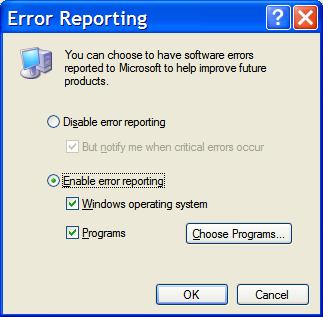
  • Press the 'Error Reporting' button


This opens the Error Reporting dialog, from here you can disable or enable this feature all together or only for specific applications.

Note: All reports are transmitted using HTTPS, to prevent someone other then Microsoft from receiving this information.

Friday, August 12, 2005

Help Prevent Phishing Attacks

If the idea of identity theft scares you, you're justified in your concern. It seems like everyday, new types of 'phishing attacks' are being created. If you don't know what phishing attacks are, I will try to explain.

This is when someone tries to trick you in to revealing your personal information (such as passwords, social security numbers, and more), this is known as a phishing attack. They generally do this by sending you forged emails from legitimate companies that you trust (like: B of A, Citibank, eBay, etc.). These email contain links to a phony web site that looks legitimate. Then when you go to the phony web site, it will ask you to 'verify' your information by requesting you to enter your credit card, social security numbers, user accounts and password, etc.

Unfortunately, there is no easy way to detect phishing web sites, and they're increasing in their sophistication all the time. Right now, one of the few semi-reliable tools for fighting back against these attacks, are programs that validate the IP address of the web site you're visiting.

There is a tool from a U.K. company called Netcraft, which has created a free browser plug-in called the 'Netcraft Toolbar' (now available for Internet Explorer and Firefox). Netcraft has compiled a list of known phishing sites from user input (which comes from the toolbar), and its own data.

When using the toolbar, users are encouraged to report phishing sites that they find. Then, If you attempt to visit a known phishing site, the toolbar will block it and warn you. Other web sites have 'risk ratings' assigned to them, this rating is based on technical factors in the page that may be typical of a phishing web site.

Thursday, August 11, 2005

Searching Files and Text (Classic Look)

When searching for files in Windows XP using the built-in search feature in the Windows Explorer. You might see a little animated character (generally its a dog) in the lower left corner of the window.

Some people prefer the classic look, which means searching without the animated character. If you like this feature skip this article now, if you don't like this feature read on.
  • The quickest way to access the file search window is by clicking an empty area of the taskbar and pressing F3.
  • Click the 'Change preferences' link.
  • Click the 'Without an animated screen character' link.
These steps will cause the animated character to disappear. Although, you can bring it back at anytime, just by repeating the steps above.

Tuesday, August 09, 2005

Displaying Hidden Files

Windows XP by default will automatically hide certain file types and folders to protect the operating system. For the average user who doesn't really modify their system defaults, with the exception of the changing the desktop or screen saver, this is a great feature.

If you're a power user who like to get into the nuts and bolts of the system or you just need to work on it, this feature can be really restrictive. To display hidden files and folders, do the following:

Note: By displaying hidden files, you can damage or disable the your operating system. Proceed at your own risk. It is also recommended that you have a good backup of your computer's data before making any system changes.
  • Click the My Computer icon under the Start menu.
  • Open the Tools menu, and select 'Folder Options...'.
  • Click on the View tab.
  • Scroll down the list, and select 'Show hidden files and folders' radio button. You might also want to check or uncheck the following items:
    • Check 'Display the contents of system folder' checkbox.
    • Uncheck 'Hide Extensions for known file types' checkbox.
  • Press the OK button to save your changes and exit.
You should now be able to see all of the hidden files and folders on your computer.

Burning Files and Folders to CD

Sometimes it is necessary to copy data off your computer to a removable media, like a CD or DVD. So to handle situations like this, Windows XP comes with CD burning software built in to the Windows Explorer.

A standard CD can hold about 650 Megabytes, but some newer non-standard higher-capacity CDs can hold more data (i.e.: 700MB+). I have not used this media so I can't offer any advise as far as compatibility with current and older drives.

To create a CD, follow the instructions below:
  • Insert a blank CD in to your CD recorder drive.
  • Open 'My Computer' under the Start menu.
  • Select the files or folders you want to copy to the CD (To select multiple items, hold down the CTRL key and click the files or folders you want to copy).
  • Then, under the File and Folder Tasks pane, click 'Copy this file', 'Copy this folder', or 'Copy the selected items' (the option will change depending on what items you selected).
  • In the Copy Items dialog box, find your CD recording drive click on it and then press the Copy button.
  • In My Computer, double-click the CD recording drive.
A window will open, and will show all the files and folders that will be copied to the CD when your ready to commit the files. Double check to make sure that these are all the files and folders that you want to copy. After you write these files to the CD, you can not add or delete these files. If you're using a re-writable CD you will have to reformat the CD and start over again.
  • Under 'CD Writing Tasks' pane, click the link 'Write these files to CD'.
  • The 'CD Writing Wizard' will be displayed, follow the instructions in the wizard.
Note: If you have low hard drive space you will not be able to write the files to CD. Windows makes temporary copies of all files that you're going to write to the CD on your local hard drive. You will need about a Gigabyte of free space to create a CD.

Bonus Tip:
It's useful to check the CD after you finish burning it to make sure that the files copied properly. So to help make this confirmation process easier, you should turn off the feature that automatically ejects the CD when the data transfer process is finished.

To stop the CD drive from automatically ejecting the CD:
  • Open 'My Computer' under the Start menu.
  • Right-click your CD recording drive, and then select Properties.
  • Click the Recording tab, uncheck the 'Automatically eject the CD after writing' checkbox.

Monday, August 08, 2005

Customizing Your Folders Icon and More (Part 2)

In part one we talked about customizing your folders with different icons and pictures. Now we are going to talk about different actions you can specify to happen when you open the folder. These actions primarily deal with which Explorer view will be selected when you open a folder.

This feature is handy if you use your folders to organize different types of documents and media. For example, if you have a pictures folder you can set the Windows Explorer to open this folder to the filmstrip view automatically. All you have to do is select the 'Photo Album' option by following the instructions below:
  • Right-click on the folder that you want to customize, and select Properties.
  • Click on the Customize tab.
  • Under 'Use this folder type as a template' there is a drop down menu you can use to specify the type of documents the folder contains. Depending on the option you select, will determine which Explorer view is selected whenever that folder is opened.
  • Once you're done making all your changes, press the OK button to apply your new settings and close the dialog.

Thursday, August 04, 2005

Customizing Your Folders Icon and More (Part 1)

Windows XP allows you to customize your folders with different icons and pictures, and specify specific actions that happen when you open the folder. To customize a folder's icon or picture, you need to access the folder's properties dialog.
  • Right-click on the folder that you want to customize, and select Properties.
  • Click on the Customize tab.
  • To customize the image on the folder with a new icon or picture (note: you can only select one of the two options to customize the folder):
    • To change the icon: press the 'Change Icon...' button on the bottom of the window. You will be presented with a list of icons that you can select. Select the icon that you would like to use. If you can't find one that you like, press the Browse... button, and select a file (i.e.: .DLL, .EXE, or .ICO) that has an icon that you want.
    • To add a picture: press the 'Choose Picture...' button, a standard file selection dialog box will appear. From here you can choose the picture that you want to display on the front of the folder.
  • Press the OK buttons when done.

Wednesday, August 03, 2005

Modifying the Send To Menu

The Send To menu is a very useful context menu. This feature gives you the ability to right-click on any file and perform a specific action, such as sending a file to the desktop or another location. You can also send a file to a blank e-mail, so that it can be mailed to a friend. The options are not limitless, but they're pretty extensive.

To access the Send To menu, do the following:
  • From the Run... command (Window+R or Start menu, select Run...) type "%userprofile%\sendto" (i.e.: C:\Documents and Settings\[UserName]\SendTo) and press the Enter key.
From here you can create new folders, shortcuts to applications (such as Notepad), and more. If you create a shortcut to an application, make sure that it can handle those file types you want to send it.

If you ever want to remove some items from the Send To menu, just open up the folder and delete the shortcuts you don't want.

Tuesday, August 02, 2005

Change the Default Launch Application

Have you ever needed to change the default application used to open a file type (such as an MP3). Follow the steps below to learn how to do this:
  • Open the Windows Explorer or the My Computer icon in the Start menu.
  • From the Tools menu, select 'Folder Options...'
  • Click on the 'File Types' tab, this will display a list of all of the file extensions installed on your computer.
  • From the list select the extension (such as MP3) for which you want to change the default launch application, then press the Change... button.
  • When the 'Open With' dialog displays, select the application that you wan to use to open the selected file type. If you can't find the application, press the Browse... button and find the program that you want to use to open that file type.
  • Press the OK buttons to save your changes.

Changing the Default File Type Icon

It is pretty easy to change the default icon for any file type. The hardest part will be choosing the icon you want to use.

To change the default file type icon do the following:
  • Open the Windows Explorer or the My Computer icon in the Start menu.
  • From the Tools menu, select 'Folder Options...'
  • Click on the File Types tab, this will display a list of all of the file extensions installed on your computer.
  • From the list select the extension for which you want to change the icon, then press the Advanced button.
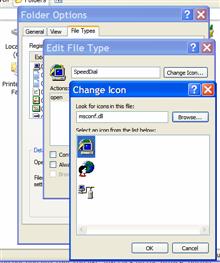
  • Press the 'Change Icon...' button.
  • From the new dialog that displayed, select the icon you want to use or press the Browse... button to select a file that has an icon that you want to use.
  • Press the OK buttons to save your changes.

Monday, August 01, 2005

Troubleshooting Monitor Refresh Rate Problems

Sometimes when trying to adjust the settings on your monitor like the resolution or refresh rate, you can overdrive it. If this happens, the image on the monitor will generally scroll or get really wacky. What happens is your video card is sending a signal to the monitor that it is unable to handle. So the end result is a messed up picture on the screen.

Windows comes with a safeguard to prevent this from happening. Such as a dialog that pops up asking you if you want to accept the new settings to the monitor after you change it. If you answer Yes it will save the settings, if you answer No it will revert to the previous setting (or if you don't answer the dialog in 15 seconds).

Although for some reason if your monitor gets locked into a refresh setting that it doesn't support. For example, when changing out an old monitor with a new monitor that doesn't support the older resolution settings.

There is a way to force Windows to startup in a lower resolution to correct this problem. This feature is called 'VGA mode.' When this feature is enabled, Windows will boot normally with one exception, it will use a basic VGA video driver running the monitor at 640 x 480 resolution with a 60Hz refresh rate.

To access the VGA mode option :
  • Restart your computer, and press F8 repeatedly as your computer boots
  • On the 'Windows Advanced Options Menu', select 'Enable VGA mode' and press the Enter key.
Any VGA monitor should be able to handle these settings. Then after the computer finishes booting, go into the Display control panel and make the proper adjustment to the monitor's settings.

Thursday, July 28, 2005

Customizing the Explorer Folder View

When using the Windows Explorer, you will notice that you can view your files several different ways (such as, by: thumbnails, icons, and details). The Details view is the most customizable view, all the columns in this view, can be added/removed, resized, or rearranged.

To customize the different parts of the Detailed view:
  • Resizing the columns: place the mouse on the vertical line that is displayed between the columns. Click and hold the left mouse button down while you drag the mouse back and fourth to adjust the column size.
  • Add new columns: display more information about your files. Right-click on the column heading and select or unselect the different column headers. Each header will display different types of information (such as: file size, creation date, modification date, etc.).
  • Moving columns: if you don't like the order that the columns are being displayed, you can change it by left-clicking on the column and holding down the mouse button. Drag the column to a new position, then just let the button go when you're done.

Rolling Back Device Drivers

One of the several system recovery features that Windows XP includes, is the ability to 'roll back' device drivers. Simply put, that means you can restore the previous device driver that you had installed on your system by pressing a button.

Now why would you want to do this? There are a few reasons. For example, if your system has been working properly for a long time, and then you decide to install a new device driver to take advantage of a new feature. If that device driver conflicts with something, or is just buggy then by pressing the roll back button, you can restore your previous driver.

Note: This feature can be accessed in Safe Mode.

To roll back a device driver to a previous version:
  • Right-click on 'My Computer' and select 'Manage.'
  • Click the Hardware tab.
  • Press the 'Device Manager' and double-click on the device whose drivers you want to roll back.
  • Click the Driver tab
  • Press the 'Roll Back Driver' button.
Windows will revert to the most recent saved driver after you restart your system.

Wednesday, July 27, 2005

Make Your Favorites Web Site Available Offline

If you have a web site that you like to visit, but you're not always online where you can read it when you want (such as being on an airplane). There is still away to access these sites, and read them while you're not connect to the Internet.

This feature is called 'offline browsing', and it allows you to store cached versions of the web pages on your local computer so that you can view the site when you want.

To enable this feature:
  • Navigate to the Web page that you want to make available for offline browsing.
  • From the Favorites menu, select 'Add to Favorites...'.
  • Select the folder where you want to store the shortcut to the web site, but before you press the OK button check the 'Make available offline' checkbox.
To further customize your offline browsing options:
  • Press the Customize button, then press the 'Next>' button
  • If the Web page contains links, you can make the links available offline by selecting the Yes radio button. From here You can also specify how deep I.E. should go when making copies of these linked Web pages available offline. It is not advisable to set this number too high, because the cached web pages will quickly consume a lot of disk space. Press the 'Next>' button to continue.
  • From here you can specify how you want to synchronize the offline Web pages (i.e.: manually or according to a schedule). Leave the default option selected and press the 'Next>' button.
  • On this page you can specify a username and password if a site requires it.
  • Press the Finish button, then press the OK button in the 'Add Favorite' dialog box.

Tuesday, July 26, 2005

Prevent Automatic Program Grouping in the Taskbar

In XP, similar windows and programs will automatically be grouped together into a single icon in the taskbar. If you don't like this behaviour, you can turn it off pretty easily.
  • Right-click an empty area of the taskbar or the Start button and select 'properties.
  • Click the Taskbar tab.
  • Uncheck the 'Group similar taskbar buttons' option.
  • Press the OK button

Monday, July 25, 2005

The 'Send To' Command

Have you ever used the 'Send To' command? Just in case you have not, the 'Send To' command is a context menu item that allows you to send files to different locations on your system (such as: the desktop, an email message, etc...).

Just in case you never heard of a 'context menu', that is the menu that is displayed when you right-click an icon in Windows. The context menu selections will change varying upon the object you click on.

Trying It Out
Try right-clicking an file on your desktop, you should see a menu item that says 'Send To'. If you select one of the items from the submenu, it will send that object to that location.

For example, if you're exploring your hard drive and you find a file that you will need to work on it later, you use the 'Send To > Desktop" command. This will place a shortcut to the file on your desktop, so that you can easily access it later.

Friday, July 22, 2005

Show Control Panels as a Menu

You can quickly access the control panel applets from the Start menu without having to open their folder. You can make the control panel applets appear in a submenu (similar to 'All Programs').

To add this functionality to the Start menu, do the following:
  • Right-click the Start button and choose Properties.
  • Press the Customize button to the right of the 'Start menu' option.
  • Click on the Advanced tab
  • In the 'Start menu items' list box, find 'Control Panel' and select the 'Display as menu' option.
  • Press the OK button twice when done.
Now when you go under the Start menu, you will see a new submenu called 'Control Panel'. All you have to do is click the menu to open it, then select control panel you want to open.

Thursday, July 21, 2005

Making Your Mouse More Responsive

Have you ever needed or wanted to increase your mouse's responsiveness? It's a pretty easy task to increase the sensitivity of it through its control panel.
  • Open the Control Panels folder from the Start menu.
  • Double-click the Mouse control panel
  • Click 'Pointer Options' tab.
  • Under the Motion section, under 'Select a pointer speed' there is a slider that you can use increase or decrease the overall responsiveness and speed of your mouse.
  • You can check the 'Enhance pointer precision' checkbox to control whether the mouse pointer has an acceleration or deceleration curve to its movements.
  • Press the OK button when done.

Wednesday, July 20, 2005

Relocate the 'My Documents' Folder

Do you need to move your 'My Documents' folder from its default location (i.e.: C:\Documents and Settings\[username]\My Documents) to another drive and/or folder? To change the location of this folder:
  • Right-click on the 'My Documents' icon on the desktop or in the Start menu, and select Properties.
  • In the Target tab, in the field in the middle of the dialog enter the new path for the location your 'My Documents' folder.
  • Press the OK button when done.

Tuesday, July 19, 2005

Add the Administrator Tools to the Start Menu

If you use the Administrative Tools a lot, you can place it at the top level of your Start menu.
  • Right-click the Start button and select 'Properties.'
  • Press the Customize button next to the Start menu option.
  • Click the Advanced tab.
  • In the 'Start menu items' box, scroll down until you find the 'System Administrative Tools' entry.
  • Select the option to 'Display on the All Programs menu and the Start menu.'

Monday, July 18, 2005

Quickly Close Multiple Items in the Taskbar

Have you ever needed to quickly close multiple applications or windows in your taskbar. Hold down the CTRL key and click on each item in the taskbar you want to close. Then right-click on any of the items that you selected and choose 'Close group'. This will close all selected applications and windows.

Friday, July 15, 2005

Working With the Briefcase (Offline File Access)

Windows XP contains a feature called the Briefcase that allows you to synchronize files with just about any type of removable media (such as a USB drive). All you have to do is create a Briefcase on your USB drive, then copy files from your local computer into it that you want to take with you.

Then when you travel to the remote computer with your USB drive, all you have to do is plug it in, then open up the Briefcase folder and work with the files within it. Then when you get back to your regular computer you can synchronize files again by pressing one button, to keep the files on your regular computer up-to-date.

Create a New Briefcase
To create a new Briefcase on a removable media device, connect your USB drive to the computer and open it up. Right-click on an empty area in the new window that opens up and select 'New>Briefcase' in the menu. Double-click on the Briefcase icon, then drag the documents that you want to take with you into the new window that opens up. This will then create copies of your original files, and store them in the Briefcase folder.

When you need to work on the documents on another computer. Just put your USB drive into that computer, open the Briefcase folder and work on the files within that window. Don't try to move these documents out of the briefcase window or the links to the original files will be lost preventing you from easily synchronizing these files when you get back to your regular computer.

Synchronizing Your Files
When you get back to your regular computer, put your USB drive back into it and open up the Briefcase folder on it. You will notice that the status of any file that you changed within the Briefcase folder will show that the file needs updating. Also note that if you changed files on your local computer, but didn't change the files in the briefcase these files will also get updated.

To synchronize all the files in your briefcase and your local computer, press the 'Update all items' link from the 'Briefcase tasks' section on the left pane of the window. A dialog will display showing which documents need to be updated. To confirm the changes press the Update button to synchronize all the files.

Thursday, July 14, 2005

Disabling the Clicking Sound in Internet Explorer

Some people get really irritated with the constant clicking noise that Internet Explorer makes when navigating through web pages by clicking links. If you want to turn this clicking noise off, it's pretty easy to do.
  • Go to 'Control Panel'
  • Double-click on the 'Sounds and Audio Devices' control panel
  • Click the Sounds tab.
  • Scroll down in the 'Program events' list until you find the 'Windows Explorer' section, then highlight 'Start Navigation.'
  • Change the 'Sounds' drop down menu at the bottom of the dialog to '(None).'
  • Press the OK button when done.
This will stop the clicking noise as you navigate different web pages.

Wednesday, July 13, 2005

Make Firefox Remember Passwords

Some web sites can include special tag (such as the: autocomplete='off') in their pages to tell browsers not to remember passwords for that site (for example, Gmail and Yahoo Mail). Most browsers honor this tag, and don't ask if you want to remember a password for that site even if you have this feature turned on.

This can be annoying if you rely on this feature to help you quickly move from web site to web site without having to remember different user names, and passwords. Well, I was frustrated and found a solution to my problem.

There is a bookmarklet (its a bookmark with some JavaScript in it) that allows you to reset this tag on the web page to allow your browser to remember the password for a site. This bookmarklet has worked pretty well for me the few times I have used it.

To install this bookmarklet, I would suggest dragging it to your bookmark link bar and leaving it there. Then to use it, when you go to a page that won't allow you to remember the login password, just click on the bookmarklet before you enter your password.

For your shopping convenience, I have included the bookmarklet here. Just drag the link to your bookmark toolbar and let go.

Notes:
  • This bookmarklet won't work on every site.
  • If you're going to use the passwords autocomplete feature in your browser, it is highly recommended that you password protect it.
  • Never store passwords to sites that contain financial, or confidential information using the password autocomplete feature. You never know how good the encryption is used to store the passwords.

Tuesday, July 12, 2005

Using MouseKeys

Have you ever come across a Windows computer where the mouse is missing, or not functioning. This can make it extremely difficult to control the computer, even if you use keyboard shortcuts there are things that still require a mouse.

There is a feature in XP called MouseKeys which is part of the accessibility utilities. This program enables you to use the numbers on the keypad to control the mouse pointer. To activate the MouseKeys functionality, press CTRL + left SHIFT + NUM LOCK keys all at the same time.

Monday, July 11, 2005

Increase the Number of Frequently Used Programs Displayed in the Start Menu

In the Windows XP Start menu, there are generally six program icons in the bottom left section that will change depending on how often you use them. If you have several programs that you use on a frequent basis you might find that you want to increase the amount of icons that can be displayed.

  • Right-click the Start menu and choose Properties.
  • Press the Customize... button to the right of the 'Start menu' option.
  • Change the 'Select an icon size for programs' option to 'Small icons'.
  • In the 'Number of programs on Start menu' set it to a value of "10". This value can be set to whatever you want, but depending on your screen resolution you might not be able to fit more than 15 or more icons.
  • Press the OK button when done.

Friday, July 08, 2005

Internet Explorer Favorites in the Start Menu

Want to add your Internet Explorer's Favorites to the Start menu?
  • Right-click the Start menu, and select Properties.
  • Press the Customize button.
  • Click the Advanced tab
  • In the 'Start menu items' list, scroll down until you reach the 'Favorites menu' check the box.
  • Press the OK buttons
Now when you open the Start menu, you will see Favorites menu.

Thursday, July 07, 2005

Making Windows Run Faster

Windows XP uses several visual effects such as animation, fading menus and more to try to enhance the user experience. While these graphical effects make Windows look pretty, they require extra CPU processing time and RAM to create them.

On an older computer which have slower CPUs and less RAM, these effects can slow down your computer. So help improve performance, you might want to try turning some or all the effects off. I am not going to promise a big improvement in your system's overall performance, but it could help.

To disable these visual effects, do the following:
  • In the Start menu, right-click 'My Computer' and select Properties.
  • In the Properties dialog box, click the Advanced tab.
  • Under the Performance section, press the Settings button.
Play around with the settings and find which ones give you the best balance of attractive visual effects vs. enhanced performance for your computer.

Wednesday, July 06, 2005

Make My Computer use Explore View by Default

The title of this article might be a bit confusing, but I hope that the next sentence will explain it better. When you open 'My Computer' under the Start menu, it defaults to a task view. This means in the My Computer window when displaying files and folders, on the right there is a set of tasks that can be performed on each item in the window (such as renaming, moving, or deleting a file).

Some people hate the Task view because it consumes too much screen space that can be used for other things, such as displaying more icons. Personally I really like the Explorer view, this view allows you to quickly access files by expanding and contracting folders by pressing the plus (+) or minus (-) icons next to these icons.

To make My Computer default to the Explorer view instead of the Tasks view, follow the instructions below:
  • From the Start menu open 'My Computer'.
  • From the Tools menu, select 'Folder Options...'
  • Click the 'File Types' tab.
  • In the 'Registered file types' list, find the item that says '(NONE) Folder' and click on it.
  • Press the Advanced button.
  • Click 'Explore' in the 'Actions list'.
  • Press the 'Set Default' button.
  • Press the OK button.
  • Press the Close button.
Now every time when you open My Computer, it will open in the Explorer view.

Tuesday, July 05, 2005

Windows XP: Using File Compression to Save Space

If you're running low on hard disk space, you can use Windows XP's built-in file compression feature which is a part of the NTFS file system to get more room. The great thing about this feature is that it automatically compresses and decompresses the files on-the-fly for you.

To activate file compression on a file or folder:
  • Right-click the item you want to compress, and select Properties.
  • Press the Advanced button at the bottom of the dialog.
  • Check the 'Compress contents to save disk space' checkbox, and press the OK button twice.
  • You will then be prompted to choose to apply the compression to just a file or folder (which includes any subfolders and files within it), then press the OK button to continue.
Windows will then compress the contents of the file or folder, so this can take a while (this process will take longer on a slower PC). You should notice when you view the file or folder in the Windows Explorer or on the desktop, the text of the item will now be a blue color to indicate that it has been compressed.

Note: Avoid trying to compress files that are already compressed (such as: audio, image, and video files), this can sometimes create files that are larger then the original.

Monday, July 04, 2005

Check Your System If a DVD Decoder is Installed

Do you want to know if your system has the DVD decoder software installed in it so that you can play DVDs inside the Windows Media Player. To check if your system has this software installed on it, follow the steps below:
  • From the Start menu, select Run..., type "dvdupgrd /detect" and press the OK button.
This utility will display a pop-up dialog with information about the decoding software installed on your computer. If no software is detected, you will need to install a 3rd party DVD decoding software package. For more information on this subject, see MSKB 306331.

Sunday, July 03, 2005

Microsoft RAW Image Thumbnailer and Viewer for Windows XP (New Utility)

Microsoft recently added a new utility to the Windows XP PowerToys collection, its called the 'RAW Image Thumbnailer and Viewer' . This utility adds new functionality to the Windows Explorer, it allows you to see thumbnails, view the file's meta data, preview, and print photographs stored using the RAW image file format. This is a digital image format that is primarily used by most Canon and Nikon digital cameras.

Digital photographs stored in the RAW image format are stored uncompressed, meaning that no image quality is lost due to compression (such as JPEG image files). Since these files are uncompressed, they will also be several times larger then the same version of the files that is compressed.

Friday, July 01, 2005

Windows XP PowerToys (Part 5)

Today's featured PowerToys are:
Power Calculator [Download]
With this PowerToy you can graph, evaluate functions, and perform many different types of conversions. This is really a very versatile and powerful calculator. To access this utility, go under the 'Start menu|All Programs|PowerToys for Windows XP|Slide Show Wizard'.

Taskbar Magnifier [Download]
Magnifies part of the screen and displays it the taskbar. To access this tool right-click an empty area of the taskbar, and then select 'Toolbars > Taskbar Magnifier'.

Open Command Window Here [Download]
Adds an 'Open Command Window Here' context menu option on file system folders. This allows you to quickly open a command window at the location of the selected folder. To access this tool right-click a folder, and select 'Command Prompt Here'.

Thursday, June 30, 2005

Windows XP PowerToys (Part 4)

Today's featured PowerToys are:
HTML Slide Show Wizard (Updated) [Download]
A wizard that helps you create an HTML slide show of your digital pictures that can be placed on a Web site. To access this utility, go under the 'Start menu|All Programs|PowerToys for Windows XP|Slide Show Wizard'. Then follow the wizard's prompts. When you're done a set of files will be created that can be uploaded to your web site.

CD Slide Show Generator [Download]
This utility is very similar to the HTML slide show wizard, except that it creates the slide show directly on the CD-R disk. To use this tool, put a CD-R disk into your CD-writer. Then add only images to the CD-ROM using the Windows Explorer. Click the 'Write these files to CD' task. In the Wizard select the option 'Yes add a picture viewer', and finish following the prompts in the wizard. After the CD is created, the slide show starts automatically when the CD-ROM is insert into the drive (as long as the AutoRun option is not disabled).

Wednesday, June 29, 2005

Windows XP PowerToys (Part 3)

Today's featured PowerToys are:
Virtual Desktop Manager [Download]
Allows you to manage up to four virtual desktops from the Windows taskbar. This is a great feature to have if you run several applications at one time. You can assign a set of applications to one of the virtual desktops, then switch to those applications quickly. To access this tool right-click an empty area of the taskbar, and then select 'Toolbars > Desktop Manager'.

Image Resizer [Download]
Resize one or many image files without the use of digital editing software. Right-click the image(s), then select 'Resize Picture'. I dialog will display, asking you how large or small you want to make the image.

Tuesday, June 28, 2005

Windows XP PowerToys (Part 2)

Today's featured PowerToys are:
ClearType Tuner (New) [Download]
This is a control panel applet that allows you to adjust the ClearType system settings. This feature is designed to make text on your LCD screen easier to read. To access this utility open the Control Panel folder, then double-click the 'ClearType Tuning' control panel.

Tweak UI [Download]
This utility allows you to access system settings that are not available in the default Windows XP user interface. The settings that you can modify are: mouse, Windows Explorer , Taskbar , and more. To access this utility after you install it, go under the 'Start menu|All Programs|PowerToys for Windows XP|Tweak UI'. (Requires: Windows XP Service Pack 1)

Monday, June 27, 2005

Windows XP PowerToys (Part 1)

Each version of the Windows operating system (OS) and some applications since Windows 95, has had a set of PowerToys. PowerToys are basically a set unsupported and unpolished (meaning that they don't have a slick looking user interface) utilities written by Microsoft. These utilities can perform different and specialized tasks, such as: modifying the OS, or adding new functionality.

As I stated earlier, these utilities are offered as-is, and there is no support for them. So if you use them and run into a problem with them, you're on your own.

There are eleven Windows PowerToys utilities all together, some of them more useful then the others. These utilities also perform a plethora of different functions, and don't really address any specific set of needs.

Everyday, I will feature two of these utilities for you to try out. So, today's featured utilities are:

Alt-Tab Replacement [Download]
Displays the application icon of the window you are switching to, and a preview of the page. This assists in finding the correct window when using multiple sessions of the same application. After you install the utility, just press the Alt-Tab keys to see the utility in action.

Update: Reader Neil T. (http://www.neilturner.me.uk/) pointed out another great program called TaskSwitchXP. "It's similar to the Alt+Tab Replacement powertoy but faster and with more options. It's also open source."

Webcam Timershot [Download]
Takes Webcam pictures at specified time intervals and saves them to a designated location. The pictures can be saved to a network share, an FTP share or an HTTP WebDAV share. To access the appliction, click the 'Start|All Programs|Windows PowerToys|Timer shot'. When the Timershot configuration window opens, under the Devices section select Webcam. Set the time intervals for taking pictures. Then select the location where you want to save the pictures. Press the 'Apply Settings' button when done.

Thursday, June 23, 2005

Really Useful Firefox Extensions

I have to admit, I am a Firefox fan like millions of other Windows users. If you use this browser, you quickly learn that you can literally add hundreds of extensions to expand its functionally. Most of these extensions that are available in my opinion are neat ideas, but for the most part useless.

I have read several articles from other people containing lists of that person's favorite Firefox extensions. My problem with most of these article is that most of the extensions that are listed are useless for day-to-day activities.

So I have decided to create my on own list of 'useful Firefox extensions'. Below is a list of extensions that I use everyday, and I would hate to work without them.
  • deskCut (Allows you to create shortcuts to web pages on your desktop.)
  • CopyURL+ (Quickly copies the web site title, and URL to the clipboard.)
  • IE View (Opens the current web page in Internet Explorer.)
  • Image Zoom (Allows you to zoom in or out on any image.)
  • Tabbrowser Preferences (Cause links that open as new windows, to open as tabs.)
  • Download Manager Tweak (Extends the functionality of the Download Manager.)
  • SpellBound (Spell checks your text entries in the form fields.)
  • ForecastFox (Displays weather information in the Firefox status bar.)
  • Sage (A lightweight RSS and Atom feed aggregator extension.)

Honorable Mention
There are some Firefox extensions that I plan on getting around to using more, so I decided to include them as an 'honorable mention':

Wednesday, June 22, 2005

Testing Your Defenses (Part 3)

I posted the articles 'Testing Your Defenses' Part 1 & Part 2 earlier, if you have not already read them then I would highly recommend that you do so. This should be the last segment in this series or articles.

Network Security Tests
How secure is your computer's firewall software? To know for sure you need to test your system for security vulnerabilities. You can use one of the online security scanning services below to test your computer's defenses.

Each of these online services will probe your computer firewall for security weaknesses. If these weakness are not corrected, a malicious person or program can exploit these vulnerabilities to compromise your PC and it's data. Use the results from the scan to close holes in your digital security defenses.
  • PC Flank: This site's tests show how vulnerable your computer is to various Internet threats. The tests can also determines if a Trojan horse has already infected your system and how much personal information your Web browser reveals about you while you're surfing the web.
  • Sygate Technologies: Scans the different ports and protocols on your firewall, and can show you if any of them are open or vulnerable. Notes: Most of these tests will take a while to complete.

Tuesday, June 21, 2005

Microsoft Windows Malicious Software Removal Tool

Microsoft recently released a malicious software removal tool; this program is able to scan your system and remove the 10 most virulent worms and viruses from it. Microsoft regularly updates this tool on a month as part of Microsoft's scheduled software patch cycle.

This tool is not designed as a replacement for having up-to-date anti-virus software installed on your computer. To get more information on this tool, go to the following web site.

Monday, June 20, 2005

Windows Media Player CODECs (Part 2)

In the previous article you learned that if you don't have the correct CODECs installed on your system for the Windows Media Player (WMP), you won't be able to view or listen to a media file that requires them.

There are two questions that you should be asking now. One, how do you figure out which CODECs you need to view the media files? Two, where can you download the CODECs so that you can install them on your computer?

To identify which CODECs are needed to view or listen to a media file, you need to download a utility called 'GSpot'. After you install this tool, all you have to do is launch the program, and open the media file in it. The tool should be able to identify and display the required CODECs needed to access the file.

Once you know which CODECs you need to access the file, go to one of the sites below to download the required CODECs:

Sunday, June 19, 2005

Windows Media Player CODECs (Part 1)

If you have a Windows Media Player (WMP) video or audio files that you can't view or listen to, this can be caused by the WMP missing the CODECs required to access the content. CODEC stands for COmpression/DECompression, basically it is a program that is used to compress video at different quality levels. Some CODECs are really good at creating high quality video/audio files, while keeping the file size small.

The WMP comes with a default set of CODECs that should be able to play most audio/video files. Although, it is not uncommon for video files to be compressed with the popular DivX CODEC. If you try to play a file encoded wtih this CODEC and you don't have this CODEC installed on your system, WMP will not be able to display it.

In order to view these files, you need to download and install the DivX software on your computer.

Friday, June 17, 2005

Great Freeware Windows Utilities, Part 5

Featured site of the Day:
Sysinternals Freeware: Provides advanced utilities, technical information, and source code related to Windows. This site contains some of the best and most useful free utilities for Windows.

To install most of these utilities you need to un-Zip them (Windows XP users, double-click .ZIP files to open them), and copy the contents to another folder. To remove these utilities, all you have to do is delete the programs.

Thursday, June 16, 2005

Great Freeware Windows Utilities, Part 4

Featured site of the Day:
The Portable Freeware Collection: This site is dedicated to the collection and cataloging of portable freeware utilities.

To install most of these utilities you need to un-Zip them (Windows XP users, double-click .ZIP files to open them), and copy the contents to another folder. To remove these utilities, all you have to do is delete the programs.

Wednesday, June 15, 2005

Great Freeware Windows Utilities, Part 3

Featured site of the Day:
TinyApps.Org: This web site advertises itself as 'A guide to very small software for your PC'. Its a directory of small applications that can perform different functions. Most of the programs are completely self contained, while others have installer programs. Most of the programs listed on this site are free of charge.

Note: Some applications that are installed via installation program can be made into portable applications by copying the application folder from the 'C:\Program Files' directory and into another folder or on a USB drive.

To install most of these utilities you need to un-Zip them (Windows XP users, double-click .ZIP files to open them), and copy the contents to another folder. To remove these utilities, all you have to do is delete the programs.

Tuesday, June 14, 2005

Great Freeware Windows Utilities, Part 2

Featured site of the Day:
NirSoft: Like the previous featured site, if you work on computers for a living or hobby, you should check out the freeware utilities on this site. Most of the programs that I have found on this site a very useful.

To install most of these utilities you need to un-Zip them (Windows XP users, double-click .ZIP files to open them), and copy the contents to another folder. To remove these utilities, all you have to do is delete the programs.

Monday, June 13, 2005

Great Freeware Windows Utilities, Part 1

I have decided that I am going to theme the site this week. I am going to feature a new web site everyday that offers great 'portable' freeware utilities.

Portable utilities are programs that are generally self contained, and don't require an installation program to install them. Since these programs are portable, this means that they can be placed on the local hard drive, or can be copied to a USB drive.

To install most of these utilities you need to un-Zip them (Windows XP users, double-click .ZIP files to open them), and copy the contents to another folder. To remove these utilities, all you have to do is delete the programs

Featured site of the Day:
Roadkil.net: If you work on computers for a living or hobby, you should check out the freeware utilities on this site. Most of the programs that I have found on this site a very useful.

Friday, June 10, 2005

Best FREE Online Hardware Support Sites

Do you have a problem with your computer, and you think it is hardware related. Here are some of the sites that I would use to help me troubleshoot my problems over the Internet.

For those of you who are thinking the obvious, if you're computer is down how are you going to access the Internet. Well, you will have to access these sites from another computer, if the one you're working on is down. If you don't have another computer, then you will be on your own.

The first place you want to start looking for help is your hardware (i.e.: computer, motherboard, or other peripheral) manufacturer's web sites. From here you will have access to online technical support, forum, and other resources:
Hardware/Drivers Sites
  • Tom's Hardware Guide (Latest information PC hardware)
  • Windows Driver Guide (Windows Drivers)
  • WinDrivers.com (Windows Drivers [Commercial - Not Free])
    • I included this entry because it is one of the most comprehensive sources for device drivers available that I am aware of. The free alternatives are not as good, with the exception of the 'Windows Driver Guide'.
General Support
  • Google
    • This is a very general purpose area to look for information, but it still contains a wealth of sites that might contain the answer to your question.
  • Google Groups
    • There is a possibility you can find the answer to your question here, if you can't find it in the main Google search engine. Google Groups gives you access to the Usenet archive, which is the world's largest online general purpose bulletin board.

Thursday, June 09, 2005

Best FREE Online Internet Utilities

These are some of the more useful Internet utilities sites I have found. Each site can perform a different set of functions, such as: diagnostics, security, file sharing, etc.

All these sites are broken down into groups, based on the functions that they perform.

Network Tools
Miscellaneous Tools
Security
Browser
I have tried to make this list as complete as possible, so if you feel that I am missing a great site that should be included in this list please feel free to e-mail me (use the 'Send Comments' link on the side to this page to e-mail me). I will include all the updates in this post as soon as I am made aware of them and have verified the site.

Wednesday, June 08, 2005

Best FREE Windows Malicious Software Removal Tools

These are the best free utilities for fighting malicious software (aka Malware). Malware can be defined as any software that installs itself on your computer without your permission, generally these types of programs will try to: monitor your computer activity (spyware), display popup ads (adware), destroy data (viruses), steal information (keyboard loggers) or steal resources (such as processor, memory, and network bandwidth) for malicious activities.

The programs listed below will help you fight against these types of programs by helping you to detect, remove, and prevent your system from getting infected in the first place.

Anti-Virus Scanners (Real-time)
  • Avast (Home Edition)
  • AVG (Free Edition)
Anti-Virus Scanners (Standalone)
Anti-Virus Scanners (Online)
Spyware and Adware I have tried to make this list as complete as possible, so if you feel that I am missing a great site that should be included in this list please feel free to e-mail me (use the 'Send Comments' link on the side to this page to e-mail me). I will include all the updates in this post as soon as I am made aware of them and have verified the site.

Tuesday, June 07, 2005

Use Outlook Express to Access your Gmail Account

Are you an Outlook Express (OE) user, and want to be able to get your messages from your Gmail account without having to use web the interface? This is possible, but there are a few things that you need to do to set this up.

Setting up your GMail account:
  • Login to the Gmail account on the Gmail web site.
  • Click Settings link in the navigation bar at the top of the page.
  • Click the 'Forwarding and POP' tab.
  • In the 'POP download' section, select 'Enable POP for all mail' or 'Enable POP only for mail that arrives from now on'
  • Press the 'Save Changes' button
Now to setup OE:
  • Luanch Outlook Express
  • From the Tools menu, select Accounts...
  • Click Add button, and select Mail...
  • Type your name and press the Next button
  • Enter your Gmail email address and press the Next button.
  • Under 'My incoming mail server is a' [dropdown menu], select 'POP3'.
  • In the 'Incoming mail server' field, type "pop.gmail.com"
  • In the 'Outgoing mail (SMTP) server' field, type "smtp.gmail.com" and then press the Next button.
  • In the 'Account name' field, type in your Gmail email address (such as: username@gmail.com).
  • In the 'Password' field, type in your Gmail password and press the Next button
  • Press the Finish button.
Now configure the new account:
  • While still in the Accounts dialog, select the new account name that you just created and press the Properties button.
  • Click the Servers tab
  • In 'Outgoing Mail Server' section (its toward the bottom section of the dialog), make sure the 'My server requires authentication' checkbox is checked.
  • Click the Advanced tab
  • Check the 'This server requires a secure connection', under both 'Outgoing Mail (SMTP)' and 'Incoming Mail (POP3)'. Also make sure that the following ports are assigned each of the protocols
    • For 'Outgoing Server (SMTP)' field, type "465".
    • For 'Incoming Server (POP3)' field, type "995" .
  • Press the OK button when done.

Monday, June 06, 2005

Is That Email Message A Hoax?

Have you received strange email messages from Bill Gates, the American Red Cross, or some other organization asking you to fight some cause (like a little by dying of cancer) by forwarding that email to all your friends and family. As you probably already know these message are not real, and they're a hoax (watch this video).

Sometimes its not always easy to distinguish, the real messages from the fake one. To find out if a message could be a hoax, you can check it against one of the sites below to see if it has been floating around the Internet for a little while:

Friday, June 03, 2005

Is Windows XP Running Slowly?

If you're having a problem with your Windows XP computer running slowly. Check the 'Task Manager' (to access this utility right-click the Taskbar and select 'Task Manager', then click on the Processes tab) and look to see if the CIDAEMON.EXE is using a great deal of the CPU time.

The CIDAEMON.EXE is the Indexing service, and its updating the index catalog. To prevent this problem from happening again you can turn the Indexing service off.
  • Double-click My Computer.
  • From the View menu select 'Explorer Bar>Search'.
  • Click the 'Change Preferences' link.
  • Select 'Without Indexing Service'. (If you don't see this option, it is already turned off).
  • Click 'No, do not enable Indexing Service.'
  • Press the OK button.
Note: By disabling this service you will prevent Windows from indexing the documents on your computer. This slowdown any searching of the documents and your computer. If you don't use the option to search the contents documents it will be no great loss.

Thursday, June 02, 2005

Karen's Calculator (PowerTool)

Karen's Calculator is a high-precision calculator. Unlike ordinary calculators, it returns completely accurate results, even with operands containing thousands of digits. If you're patient, operands and results containing hundreds of thousands of digits are possble too!

Most calculators are only accurate when dealing with numbers containing a few digits -- usually 16 to 32. When asked to calculate using larger numbers, they either fail (displaying an error) or return results that are only approximately accurate.

Karen's Calculator can easily handle numbers and results containing manu thousands of digits with complete accuracy. It also includes an on-screen "tape" -- which can be saved to disk -- versatile memory features, and more!

Wednesday, June 01, 2005

Spybot Search and Destroy 1.4

If your a fan Spybot Search and Destroy, I just found out they just released their latest version today which is v1.4. If you don't know what SS&D is, it is one of the Spyware/Adware detection and removal tools.

Below is a list of some of the new features:

First native multi-installation scanner
On PE boot CDs as well as on any system with multiple installations of Windows 2000 or later, Spybot-S&D 1.4 is able to scan the other installations as well, including the registry. From what we know, Spybot-S&D is the first anti-spyware solution that offers inactive registry scanning as a native feature.

Speed boost-ups
Spybot-S&D 1.4 should work noticably faster than 1.3 during scans. And if you still don't like to wait, you can play our easter egg while scanning.

Improved tools
We've improved the Tools section that Spybot-S&D offers in advanced mode - the process list now offers a list of open network connection per application (Windows 2000 or newer only), helping you to quickly identify which applications are local and which do use connections to the outside. Our detection mechanisms have also been updated, from detecting and cleaning services over protocol filters to the afore-mentioned scanning in inactive installations registries.

Graphics remake, and more
We've replaced the old home made icons with a bunch of great graphics provided by the guys at Yellow Icon Studio to make the user interface look smoother. But while this is highly visible on the surface, there have been more than 104 important changes underneath.

Tuesday, May 31, 2005

Best FREE Online Windows Support Sites

In my continuing saga to publish my 'Best Free Online...' lists, here is my latest edition.

Today's topic is: Windows technical support and reference sites. You can use these sites for troubleshooting different types of hardware and software problems, and getting answers to your questions.

Most of the sites below exists for the sole purpose of answering your questions about different problems that you're having with the Windows OS and its applications. The other sites are more generic like Google, but they're still great tools for troubleshooting problems.

Search/Reference Sites
  • Google (Search Engine)
    • I always start with Google when looking for an answer to a specific problem, then I start to narrow my search with other sites depending on the problem I am having. Note: The more specific keywords you use to describe your problem (such as the text from an error message), the better the results.
  • Google Group (Usenet Archive)
    • If the results from the main Google search page can not answer my questions, I then check the Usenet archive for answers. Note: If you can't find the answer to your problem here, post a question, then check back in a few days to see if any one has answered it.
  • FILExt (File Extension Reference)
  • NTFS.com (NTFS Reference Site)
Online Communities and Support Forums
(Check the sites below to see if you can find a specific answer to your problem. If can't find the answer to your problem, then post the questions on the site and check back in a few days to see if any one has answered it.)
Microsoft Support Sites (These are best Microsoft sites for finding answers to your problems and questions.)
I have tried to make this list as complete as possible, so if you feel that I am missing a great site that should be included in this list please feel free to e-mail me (use the 'Send Comments' link on the side to this page to e-mail me). I will include all the updates in this post as soon as I am made aware of them and have verified the site.

Monday, May 30, 2005

Best FREE Online Windows Tools

I have decided to create a series of posts that I am going to be calling the 'Best FREE Online ... Tools'. I consider these tools to be the best of the best, and all of them are free (unless otherwise noted). I plan to cover several different topics over the next few days and weeks.

Today's Topic
I have visited thousands of web sites, and these are the best and most useful Windows utilities sites I have found online. Each site can perform a different set of functions, such as: diagnostic, security, etc.. All these sites broken down into groups, based on the function that they can perform.

Note:
All of these sites require Internet Explorer v6.0 or higher

Computer
Security
Networking

I have tried to make this list as complete as possible, so if you feel that I am missing a great site that should be included in this list please feel free to e-mail me (use the 'Send Comments' link on the side to this page to e-mail me). I will include all the updates in this post as soon as I am made aware of them and have verified the site.

Friday, May 27, 2005

Email Message Shortcuts

You can setup a shortcut that will allow you to create an e-mail message quickly. When this shortcut is launch it will open a new message in your default e-mail program.
  • Right-click an empty area on the desktop (or choose any folder), then select 'New>Shortcut'.
  • In the Shortcut Wizard, in the location box type "mailto:".
  • Press the 'Next >' button, then give the shortcut a name (for example: "Create New Message") and then press the Finished button.
If you want to, you can also pre-addressed your messages, all you have to do is add the e-mail address after the 'mailto:' (i.e.: 'mailto:jsavitt@example.com'). Then when you double-click the shortcut it will open up a new e-mail message that is pre-addressed to the recipient.

Thursday, May 26, 2005

The Dos and Don'ts Battery Table

Every type of battery has its own unique needs that should be satisfied to obtain the optimal reliability and service from it. The 'Do and Don't battery table' summarizes these needs and advises proper handling for each type of battery. By not properly maintaining your computer's batteries, you will lower it reliability and life expectancy.

Wednesday, May 25, 2005

Shutdown/Restart Your PC from a Shortcut

It is very easy to create a shortcut to shutdown or restart your PC on the desktop:
  • Right-click an empty area on the desktop (or choose any folder), then select 'New>Shortcut'.
  • In the Shortcut Wizard, in the location box type "shutdown -s -t 01" (to shutdown your computer) or type "shutdown -r -t 01" (to restart your computer).
  • Press the 'Next >' button, then give the shortcut a name (for example: "Shutdown Computer" or "Restart Computer") and then press the Finished button.
Then all you have do is double-click the shortcut, and your computer will shutdown or restart itself depending on what shortcut you created.

Tuesday, May 24, 2005

Shortcuts to Web Sites

It is very easy to create a shortcut to your favorite web site on the desktop:
  • Right-click an empty area on the desktop (or choose any folder), then select 'New>Shortcut'.
  • In the Shortcut Wizard, in the location box type the URL to your favorite web site (i.e.: "http://www.example.com").
  • Press the 'Next >' button, then give the shortcut a name (i.e.: "Example.com") and then press the Finished button.
Then all you have to do is double-click the shortcut, and your browser will open that web site.

Monday, May 23, 2005

Shortcut to 'Run' Command

This is one of those tips that you might think is cool, I didn't know you could do that; or dude this is totally useless. To create a shortcut to the Run... command under the Start menu, all you have to do is right-click on the icon and drag it to the Desktop or any open folder.

Note: This tip will work on just about any item under the Start menu.

Friday, May 20, 2005

Create an MS-DOS Prompt Shortcut on Your Desktop

It is very easy to create a shortcut to the MS-DOS Prompt on your desktop:
  • Right-click an empty area on the desktop (or choose any folder), then select 'New>Shortcut'.
  • In the Shortcut Wizard, in the location box type "CMD.EXE" (if that doesn't work try "%WINDIR%\SYSTEM32\CMD.EXE").
  • Press the 'Next >' button, then give the shortcut a name (for example: "MS-DOS Prompt") and then press the Finished button.

Thursday, May 19, 2005

Change Your Browser's Home Page

This tip works in Internet Explorer, and Firefox. To change your browser's default home page all you have to do is drag the little icon next to the web site address (i.e.: http://www.example.com) in the address bar, to the picture of the house in the toolbar. A pop-up dialog will display asking if you want to change the default home page, and all you have to do is say 'Yes'.

Wednesday, May 18, 2005

Speed-up Menu Displays

If the collapsed menus (such as those in MS Word) are displaying too slowly for you. You can make a quick and easy modification to make them appear more quickly.

Open the Control Panel and double-click on the System icon.
Click the Advanced tab, and under Performance section press the Settings button.
Uncheck the 'Fade or slide menus into view' check box, and then press the OK button.

Now when you expand a collapsed menu, it will appear more quickly.

Tuesday, May 17, 2005

Switch Browsers Now...

You have probably heard people raving about the new Firefox browser. Its been out for several months now, and it is taking the Internet by storm. I personally use this browser at home, and at work.

I almost never use Internet Explorer (IE) anymore, because I like the features of Firefox better. IE v6, was an okay browser for its day, but Microsoft stopped enhancing it and is now getting beat by Firefox.

If you want to know why you should make the switch to this browser, there are several reasons:
  • It is more secure then IE. Although its had its security issues that needed to addressed. Mozilla had to push out four minor releases in the last few months to fix security issues. So you will have to keep it up-to-date.
  • It supports tab browsing, this allows you to open up different tabs for different web sites in one browser window. Once you use this feature, you will be hooked.
  • It also includes features like: a download manager, a form and password manager, web searching from the toolbar, plug-in extensions, and themes. IE does have some of these features but not all of them.
Overall Firefox is just a better browser, try it out and uninstall it if you don't like it. It will automatically import all your setting from IE when you install it. So it should be an easy conversion.

Monday, May 16, 2005

The Best Computer Newsletter

If you read only one computer newsletter, I would highly recommend reading LangaList by Fred Langa. I have personally been reading it for years, and have always gotten some valuable information from it.

To sign-up for it, go to Langa.com.

Thursday, May 12, 2005

Encrypting Your Important Files

This Tip Will Only Work on Windows XP Professional, the Home Edition doesn't support this feature.

Windows XP Professional contains a built-in ability to encrypt and decrypt files on the fly without any user intervention. This allows you to quickly access your protected files, while preventing others from being able to read them.

To encrypt a file or folder:
  • Right-click it, and select Properties.
  • Press the Advanced button.
  • In the dialog box that displays, check 'Encrypt contents to secure data' check box, then press the OK button.
In the Windows Explorer you will notice that the text next to the icon changed to green, this indicates that the file or folder is now encrypted. All this means to you is any data inside that file or folder will now be encrypted when you save, and decrypted when you open it. This operation should almost be invisible to you.

To undo this feature, all you have to do is follow the instructions above, and uncheck the 'Encrypt contents to secure data' check box, then press the OK button.

If you need to allow others people to access your protected files or folders, do the following:
  • Right-click the protected file or folder you wish to grant others access too, and select Properties.
  • Press the Advanced button.
  • In the dialog box that displays, press the Details button next to the 'Encrypt contents to secure data' check box
  • Press the Add button to add the users you want to grant access to the file or folder.
  • Press the OK button.
Note: If you're going to delete the user account that created the encrypted files/folders or reinstall XP, you must unencrypted all your files first. Otherwise you will not be able to recover them. Even if you create another user with the same ID and password, you will not be able to recover these files.

Hiding or Unhiding Notification Tray Icons

Another feature of the Taskbar, is it will automatically hide of icons that are not used in the Notification Area (formerly known as the System Tray). To unhide icons that were automatically hidden, you have to tell Windows not to hide them.
  • Right-click the Taskbar, and select Properties
  • Check the 'Hide inactive icons' checkbox.
  • Press the Customize button.
  • In the dialog box you can select one of three states for each Notification Tray icon: Hide when inactive, Always hide, or always show. All you have to do change the state of an icon is change the drop-down menu next to it.
  • Press the OK button, twice when you're done.

Wednesday, May 11, 2005

Grouping or Ungrouping Taskbar Icons

If you open up a lot of applications in Windows XP, by default itwill automatically group similar taskbar application icons under one icon. Some people like this feature, and some people hate it.

To disable (or re-enable) this feature:
  • Right-click the Taskbar.
  • Select Properties.
  • Check or uncheck 'Group similar taskbar buttons' checkbox.

Tuesday, May 10, 2005

Closing Multiple Applications in the Taskbar

If you need to quickly close multiple application windows in the taskbar. You can do so by holding down the Ctrl key while clicking on applications icons in the taskbar that you want to close. Then right-click on one of the selected icons and choose 'Close Group'.

Monday, May 09, 2005

Stretch Your Signal (Article)

This is a great article if you're struggling trying to extend the range of your Wireless Access Point (WAP). WAP are advertised with greater broadcast ranges then most people will be able to achive in real life situations. So if your WAP, is not providing coverage of your home or business the way you want it, then check out this article to get some ideas on how to increase you wireless LAN coverage.

Friday, May 06, 2005

Creating Keyboard Shortcuts

You can quickly access just about any application and folder by creating keyboard shortcuts to them. Keyboard shortcuts work by opening a specific application or folder when you press a key combination that you assign to it.

To a create keyboard shortcut:
  • Create an application shortcut to the application or folder that you want to assign the keyboard shortcut.
  • Right-click the application shortcut, and select Properties.
  • In the Shortcut tab, click in the 'Shortcut key' field, then type the keyboard shortcut you want to create. For example: CTRL+ALT+P, for Microsoft Paint.
  • Press the OK button when done.
Now all you have to do to launch Microsoft Paint is press the CTRL+ALT+P key combination. Within a few seconds pressing the keyboard shortcut the applicationshould load.

Note: All keyboard shortcuts have to start with CTRL+ALT+(some letter or number), you can't assign just CTRL or ALT keys by themselves.

Thursday, May 05, 2005

Run Command Windows Shortcuts

With the Run... command (under the Start menu, select Run...) you can quickly access different Windows consoles and utilities by typing their filename, and pressing the Enter key. Below is a brief list of the more popular utilities that you might use:
  • Command prompt: cmd
  • Computer management: compmgmt.msc
  • Device manager: devmgmt.msc
  • Event viewer: eventvwr.msc
  • Internet Explorer: iexplore
  • Registry Editor: regedit
  • Services: services.msc
  • Storage manager: diskmgmt.msc
  • Windows Explorer: explorer

Wednesday, May 04, 2005

Alphabetize 'All Programs' in the Start Menu

You can alphabetize all the applications listed under the 'All Programs' in the Start menu. All you have to do is right-click some where in the 'All Programs' submenu and select 'Sort by Name.' All the program will now be listed alphabetically.

Tuesday, May 03, 2005

Capture Screenshots

A screen-capture utility comes built into Windows that allows you to capture the current screen or window. All you have to do is press the 'PrtSc' button (aka 'Print Screen') to capture the current screen, or press the 'Alt+PrtSc' buttons to capture the current window to the clipboard.

Then load an image-editing program (such as: Windows Paint) to view, edit, or save the captured image. Press Ctrl+V to paste the image into it.

Monday, May 02, 2005

Put Notepad in the 'Send To' Menu

If you use Notepad a lot, there is an easy and quick way to send a file to it. Just put Notepad in your 'Send To' menu.

Here's how:
  • Right click the Start menu.
  • Click Explore.
  • In Windows Explorer's left pane, expand the Documents and Settings folder (usually on the C: drive).
  • Click the folder for your user account name.
  • Click the Sendto folder.
  • In the right pane, right-click and select New, then select Shortcut.
  • Create a shortcut to Notepad.exe by browsing to the file location in the Create Shortcut Wizard (it should be located in the system root folder, usually named WINDOWS, usually on the C: drive).
Now when you right click a file and select Send to, Notepad will show up in the menu.